
AI photo editing tools have changed the game for anyone dealing with visuals. Gone are the days of tweaking every slider just to get a decent shot. Now, software can handle exposure, clean up backgrounds, smooth skin, and even fill in missing bits; often in seconds. This blog runs through the evolution of these tools, how they actually save time, and which ones are worth your attention. It reviews the top 10 editors, breaks down real-world uses, and gives tips on picking and using them effectively. There’s practical advice for photographers, marketers, and content creators alike; nothing too fancy, just what works.
Table of Contents
Introduction
What Are AI Photo Editing Tools?
AI photo editing tools are exactly what they sound like: editing software that uses artificial intelligence to make smart decisions about an image instead of relying only on manual sliders and brushes. But that simple definition doesn’t really capture what’s changed.
Traditional editing tools wait for instructions. AI tools look at the photo first. They recognize faces, skies, objects, lighting conditions, depth… then suggest or apply adjustments that actually make sense for that specific image. It’s less “push every button until it looks right” and more “start from a strong baseline, then refine.”
At a practical level, these tools handle things like:
- Fixing exposure and color balance automatically
- Smoothing skin without turning it into plastic
- Separating a subject from the background in seconds
- Removing distractions and rebuilding what was behind them
- Generating or extending parts of an image so they blend naturally
For beginners, this removes the steep learning curve that used to come with professional-looking edits. For experienced editors, it cuts down the grunt work. The tedious parts. The things that used to eat up half the timeline before the creative work even started.
From Basic Filters to Generative Editing
Photo editing didn’t jump straight into today’s AI-powered tools. It evolved in stages, and that progression matters.
First came presets and filters
These applied the same adjustments to every image: more contrast, warmer tones, and a faded look. Fun, fast, but not exactly intelligent. A bright beach photo and a dim indoor portrait got treated the same way.
Then came scene-aware adjustments.
Software began recognizing whether a photo had a face, a landscape, or low light. Edits became more tailored. Skin tones were handled differently from skies. Shadows were lifted without blowing out highlights. This is where editing started feeling responsive.
Now we’re in the generative era.
AI tools don’t just enhance what’s already there; they can create what wasn’t there. Extending backgrounds. Replacing objects. Filling in removed areas with believable detail. It’s a shift from correction to construction. And yes, that changes how editors think about composition after the fact.
Why AI Photo Editing Tools Matter in 2026
There’s one big reason: volume. Visual content isn’t slowing down. Brands need more images. Creators need daily posts. Online stores update catalogs constantly. And timelines? They keep shrinking.
Manual-only workflows simply can’t keep up at scale anymore.
How AI Speeds Up Real Workflows
A lot of editing time used to go into tasks that didn’t really require creative judgment:
- Cutting subjects out from backgrounds
- Cleaning up minor distractions
- Balancing exposure across a whole shoot
- Retouching dozens (or hundreds) of similar portraits
AI tools now do these in a fraction of the time. Not perfectly every single time; fine-tuning is still part of the job, but close enough that editors start from 80% done instead of 20%.
That shift changes how time gets spent:
- Less technical cleanup
- More attention to mood, color grading, and storytelling
- Faster client revisions because base edits are easier to adjust
It’s not about replacing skill. It’s about removing the slowest parts of the pipeline.
Why Different Creators Lean on AI Editing
Content creators need speed and consistency. Thumbnails, reels, posts; all need to look polished without hours in editing software. AI handles quick background cleanup, lighting fixes, and light retouching so visuals stay sharp even on tight schedules.
Social media marketers deal with volume. Campaigns mean variations, formats, and constant testing. AI helps keep visuals consistent across sizes and platforms while cutting production time.
Photographers benefit in the less glamorous stages: culling, base corrections, noise reduction, and sky fixes. The artistic decisions still matter. They just happen after the heavy lifting is done.
E-commerce teams probably feel the impact the most. Clean backgrounds, consistent lighting, accurate colors across thousands of products. That used to require large editing teams. Now, AI handles the bulk pass, and humans refine where needed.
How Modern Search Systems Understand This Topic
When people search for AI photo editing tools, they’re usually trying to solve something specific. They want to know:
- Which tool fits their type of work
- What features actually matter
- Whether AI editing is good enough for professional use
Content that answers those questions clearly, without fluff, tends to surface more often in summaries and quick-answer sections. Straight explanations. Practical breakdowns. Clear use cases. That’s what helps readers (and systems) understand the value fast.
How AI Transforms Photo Editing
AI in photo editing isn’t one single feature. It’s a collection of systems working together: analyzing images, recognizing elements, and applying targeted adjustments.
Here’s where the real changes are happening.
AI Image Enhancement and Auto Retouching
Auto-enhancement used to be a gamble. Click the button and hope the photo didn’t end up oversaturated or overly sharp. Modern AI tools are far more selective.
They analyze different parts of the image separately:
- Subject vs. background
- Skin vs. clothing
- Highlights vs. shadow areas
Then they apply localized corrections instead of global ones.
Common AI enhancement features now include:
- Smart exposure balancing
- Natural-looking color correction
- Noise reduction that keeps detail intact
- Skin retouching that smooths gently, not aggressively
The result is a cleaner starting point. Not a finished masterpiece, but a strong base that saves time.
AI Background Removal and Replacement
Background removal used to test patience. Hair edges, complex shapes, transparent areas; all manual work.
AI tools now detect subjects automatically and refine edges with surprising accuracy. One click often gets close enough that only minor touch-ups are needed.
Once the background is separated, it opens up options:
- Clean white or brand-colored backdrops for product photos
- Blurred or simplified backgrounds for portraits
- Completely new scenes for creative work
For e-commerce, this is a game-changer. For marketing teams, it means faster creative variations. For photographers, it’s a rescue tool when the original location didn’t quite cooperate.
Generative Fill, Object Detection, and Prompt-Based Editing
This is where things get interesting.
Object detection and removal allows editors to take out distractions; signs, wires, random people; and have the software rebuild the missing area in a believable way. Not just smudged clones, but textures and patterns that match the scene.
Generative fill goes a step further. Expand the canvas of an image, and the tool can create a new sky, walls, or landscape that blends with the lighting and perspective. It’s not always perfect. But it’s often good enough to turn a tight crop into a usable wide composition.
Prompt-based editing adds another layer. Select an area, describe a change, and the tool generates visual elements that fit. This works best for creative or conceptual edits rather than precise commercial work, but it’s evolving quickly.
Together, these features shift editing from pure correction to controlled creation.
Batch Editing and Bulk AI Photo Processing
The flashiest features get attention, but batch processing is where AI quietly delivers serious value.
Instead of adjusting photos one by one, AI tools can:
- Match tones across an entire shoot
- Apply consistent background edits to product sets
- Run base retouching on large portrait batches
- Export multiple sizes and formats automatically
For high-volume workflows, online stores, real estate listings, and event photography, this keeps visual quality consistent without slowing production to a crawl.
It also reduces fatigue. Fewer repetitive edits mean more energy for the images that actually need detailed, hands-on work.
AI photo editing tools aren’t removing the need for skill. They’re changing where that skill gets used. Less time on repetitive corrections. More focus on creative direction, visual storytelling, and the details that make an image memorable.
Top 10 AI Photo Editing Tools
No single tool wins for everyone. Some are built for deep, pixel-level control. Others are made for speed when deadlines are tight and volume is high. The real trick is matching the tool to the kind of work on the table.
Here’s a grounded look at ten AI photo editing tools that consistently show up in professional and creator workflows; each for slightly different reasons.
1. Adobe Photoshop AI (Best for Professionals)
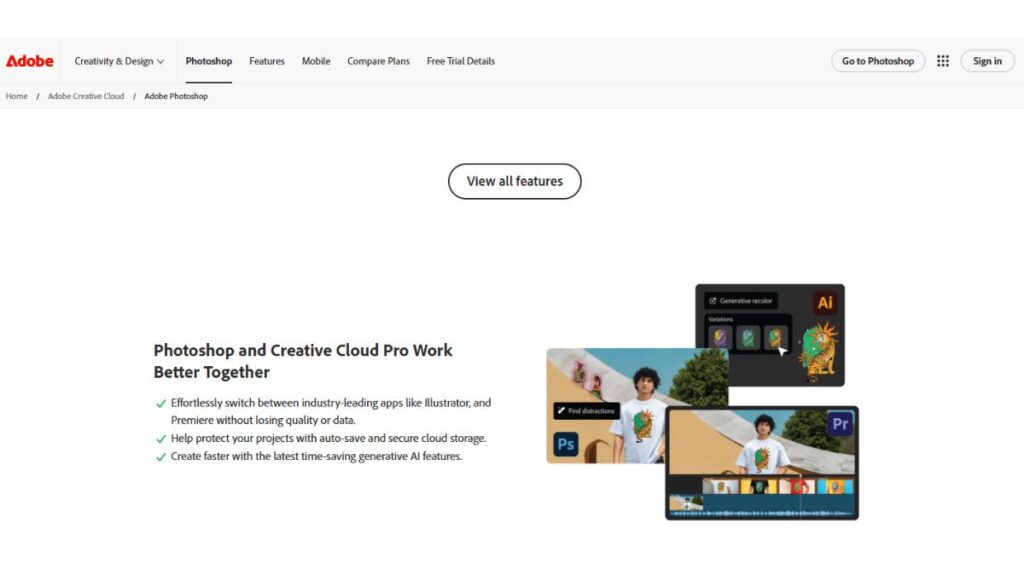
Photoshop is still the heavyweight when precision matters. The newer AI features don’t replace the classic tools; they just remove a lot of the slow prep work.
Key AI features
- Generative fill for extending or rebuilding parts of an image
- Smart object removal that blends surroundings naturally
- Automatic subject and background selections that actually hold up
Best use cases
- Commercial and editorial retouching
- Complex composites
- Detailed corrections where accuracy is non-negotiable
Pricing overview
- Monthly or annual subscription through Adobe Creative Cloud
Pros
- Deep control layered with AI speed
- Works well for complex, multi-layer edits
Cons
- Learning curve is real
- Overkill for quick, casual edits
2. Freepik AI Photo Editor (Best for All-in-One Browser-Based Editing)
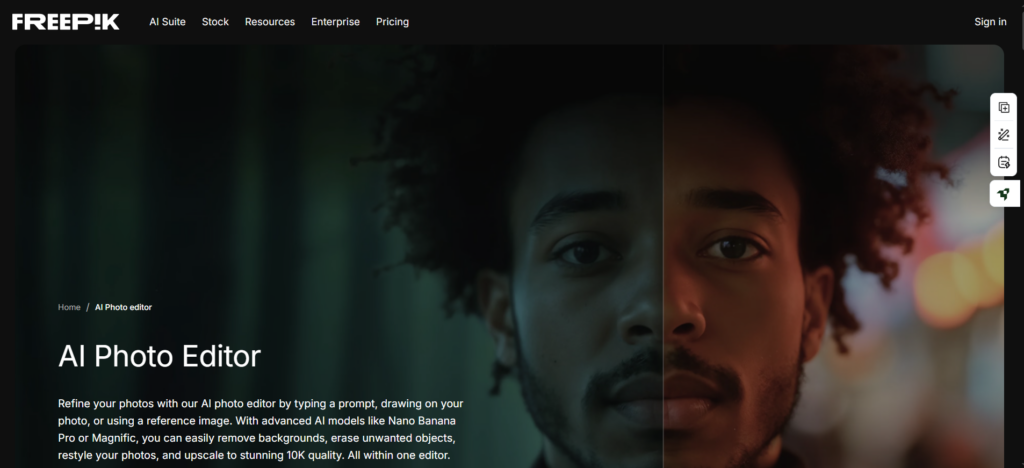
Freepik is an all-in-one creative suite that covers image generation, video, audio, and a full stock library under one subscription. The Freepik AI photo editor is the editing side of that ecosystem, bundling background removal, upscaling, retouching, relighting, and style transfer into a single browser-based workspace. Prompt-based edits run on advanced AI models like Nano Banana Pro and Magnific, so results tend to hold up well in detail and consistency. You can upload your own photos or edit directly from Freepik’s stock library without leaving the tool.
Key AI features
- Background removal, unwanted object removal, and Image Extender built into one editor
- Image Upscaler powered by Magnific for ultra high-resolution results. Skin Enhancer for refining textures and smoothing portraits naturally
- Prompt-based editing to retouch specific areas, transfer visual styles, adjust lighting, and change camera angles after the shot
Best use cases
- E-commerce teams managing large product catalogs
- Content creators and marketers producing visuals across multiple formats
- Photographers looking for fast retouching, relighting, and upscaling without desktop software
Pricing overview
- Free to use with limited AI generations; paid plans add more credits and access to advanced models
Pros
- Wide range of AI editing tools in a single browser-based editor
- Part of a larger creative suite that includes image generation, video, and audio
Cons
- AI edits consume credits, and more advanced models use them faster
- Browser-based only, so no RAW file support or heavy layered editing like desktop software
3. Google Gemini Nano Banana Pro (Prompt-Driven Editing)
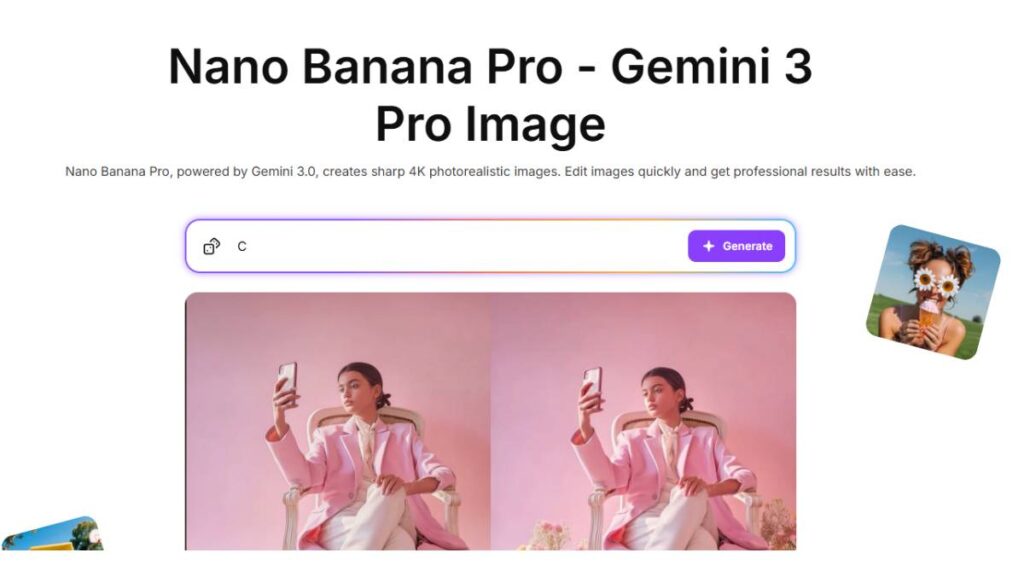
This tool leans into text-guided changes, which opens up more experimental directions.
Key AI features
- Prompt-based edits that modify selected areas
- Context-aware lighting and color adjustments
- Generative additions that try to match the existing scene
Best use cases
- Stylized visuals
- Concept-driven marketing graphics
- Fast creative variations
Pricing overview
- Typically part of a broader AI platform or subscription bundle
Pros
- Flexible for imaginative edits
- Speeds up visual experimentation
Cons
- Not always precise enough for strict commercial standards
- Results can vary from prompt to prompt
4. Canva AI Photo Editor (Best for Social & Marketing Content)
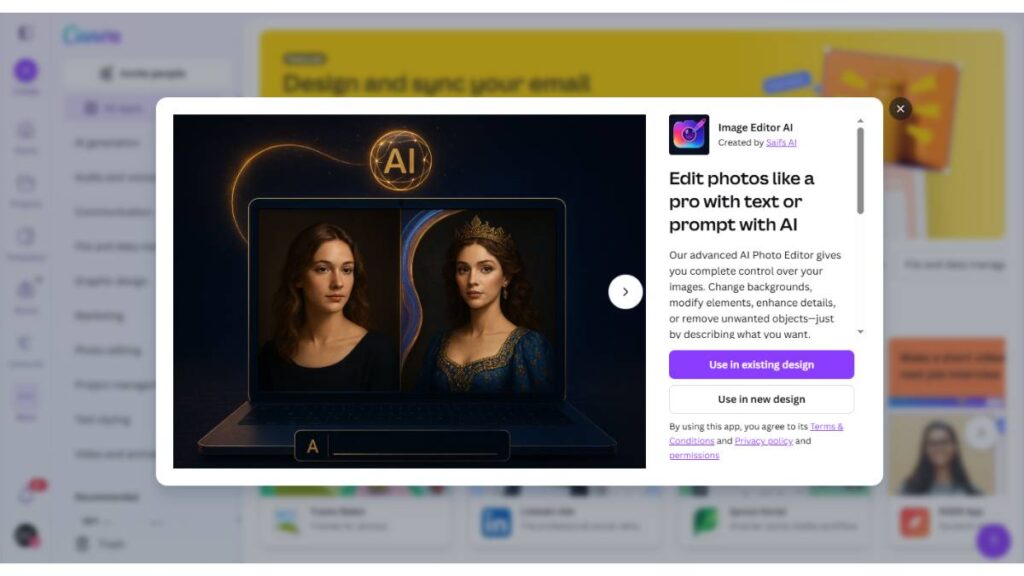
Canva focuses on speed and accessibility. It’s less about perfect pixels, more about getting solid visuals out the door fast.
Key AI features
- Background remover built into the design workflow
- Magic resize for multiple formats
- AI-assisted layout and visual tweaks
Best use cases
- Social media posts
- Ads and marketing creatives
- Teams without dedicated photo editors
Pricing overview
- Free plan available, Pro plan unlocks advanced tools
Pros
- Very easy to use
- Combines editing and design in one place
Cons
- Limited fine retouching control
- Not built for high-end photo finishing
5. Pixlr AI (Top Browser-Based AI Editor)
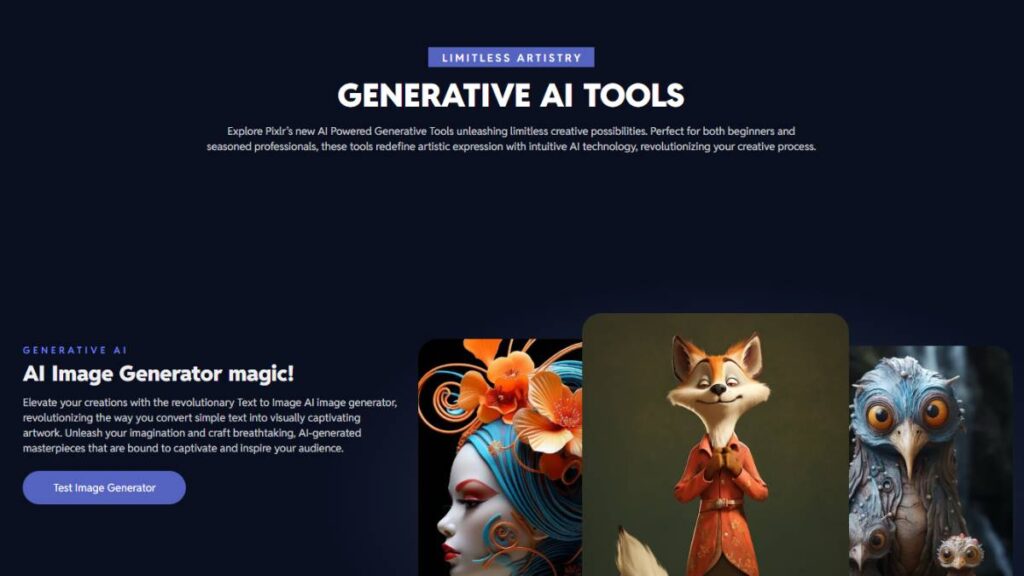
Pixlr is a go-to for quick edits when installing heavy software isn’t ideal.
Key AI features
- One-click background removal
- AI retouching tools for portraits
- Automated filters and adjustments
Best use cases
- Fast web-based edits
- Simple design or content needs
- Users who want something lightweight
Pricing overview
- Free version with ads, paid plans for full access
Pros
- Runs in the browser
- Easy for beginners
Cons
- Limited for complex projects
- Performance depends on the connection and the device
6. Topaz Photo AI (Best for Image Quality Enhancement)
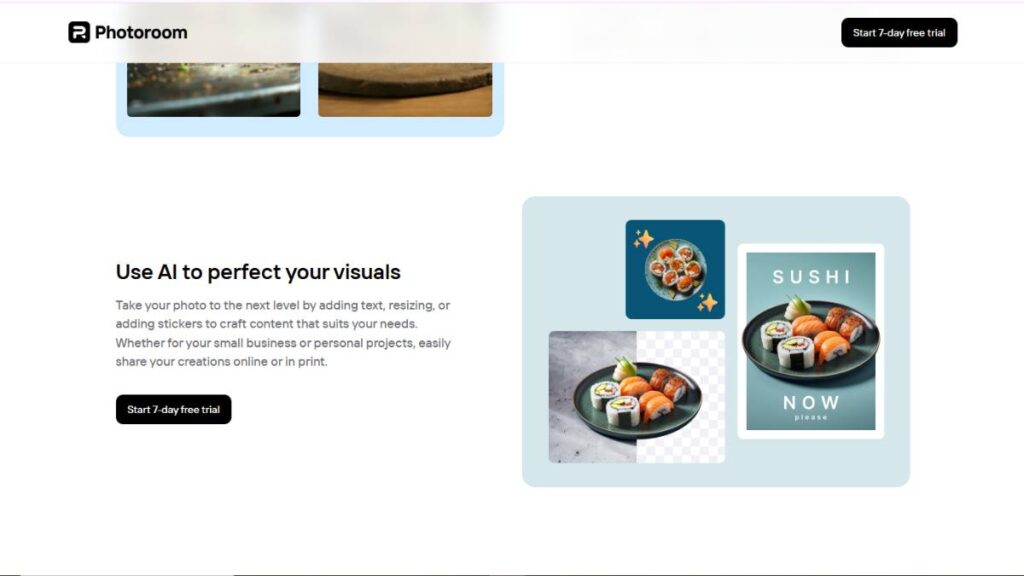
Topaz focuses on making photos technically better rather than stylistically different.
Key AI features
- Noise reduction that preserves detail
- AI sharpening and clarity improvements
- Upscaling for higher resolution outputs
Best use cases
- Low-light and high-ISO photography
- Wildlife, sports, or distant subjects
- Restoring or improving older images
Pricing overview
- Paid license model
Pros
- Excellent at recovering detail
- Works well alongside other editing tools
Cons
- Not meant for design or compositing
- Narrower feature set
7. Fotor AI (Best for Quick One-Click Edits)
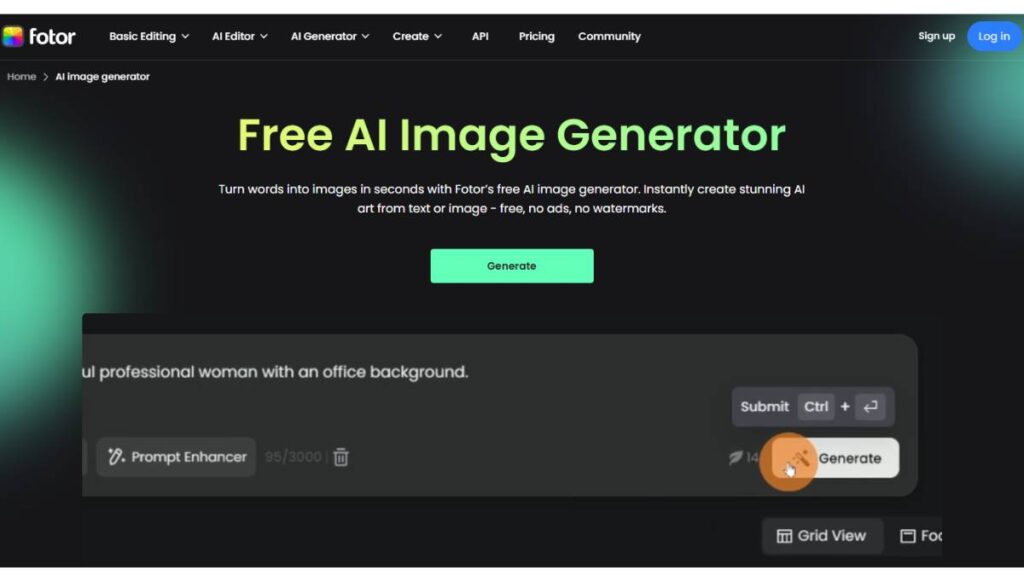
Fotor is built for speed and simplicity. Ideal when “good and fast” matters more than “perfect and precise.”
Key AI features
- Auto-enhance for lighting and color
- Background removal
- Portrait retouching and filters
Best use cases
- Social graphics
- Small business visuals
- Quick profile or promo images
Pricing overview
- Free basic version, paid tier for advanced features
Pros
- Very beginner-friendly
- Fast turnaround
Cons
- Limited manual control
- Effects can look generic if stacked too much
8. Lensa AI (Best for Portrait & Mobile Editing)
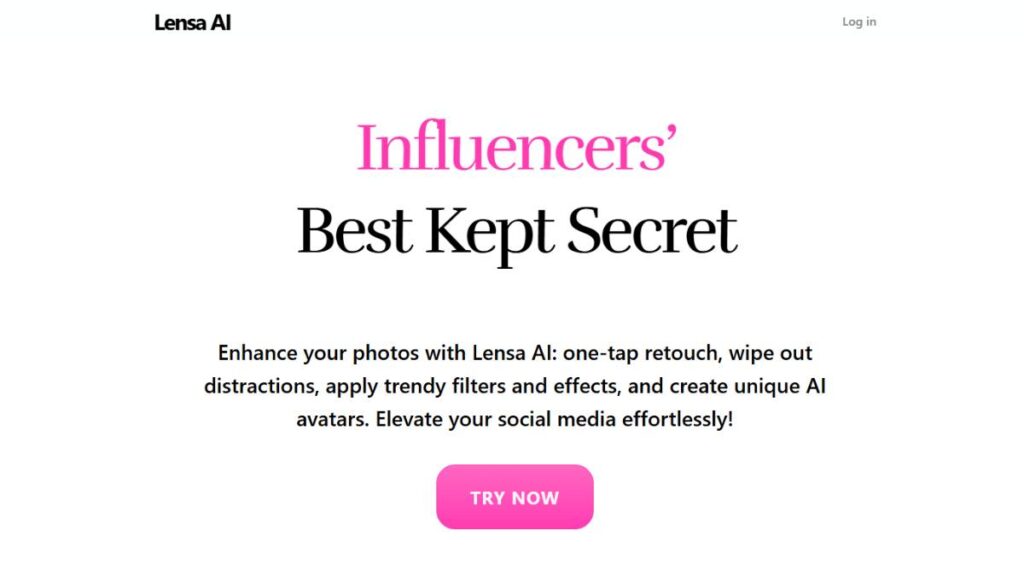
Lensa is largely portrait-focused and optimized for mobile users.
Key AI features
- Skin smoothing and facial retouching
- Background blur and depth effects
- Lighting and tone adjustments for faces
Best use cases
- Selfies and personal branding
- Influencer-style portraits
- Quick mobile edits
Pricing overview
- Freemium app with subscription options
Pros
- Designed specifically for portraits
- Simple mobile workflow
Cons
- Less useful for non-portrait images
- Limited advanced editing tools
9. remove.bg (Best Dedicated Background Removal Tool)
remove.bg does one thing: background removal, and does it very well.
Key AI features
- Automatic subject detection
- Fast, clean background removal
- Bulk processing via integrations
Best use cases
- E-commerce product images
- Team headshots
- High-volume cutout needs
Pricing overview
- Pay-as-you-go or subscription pricing
Pros
- Extremely fast
- Reliable for simple cutouts
Cons
- Not a full editing platform
- Additional refinements require other tools
10. Runway ML (Best for Creative & Hybrid Projects)
Runway ML blends AI-powered editing with creative experimentation, often bridging photo and video.
Key AI features
- Object removal and scene editing
- Generative visual tools
- Features that cross into motion and video workflows
Best use cases
- Creative campaigns
- Experimental visuals
- Teams working across photo and video
Pricing overview
- Subscription-based with usage tiers
Pros
- Flexible for creative exploration
- Useful beyond just still images
Cons
- Interface can feel complex at first
- Some features lean more toward video users
Each of these AI photo editing tools fits a slightly different lane. Some are built for polish and precision, others for speed and scale. The smart move is choosing based on workflow, not hype.

Enroll Now: Advanced Digital Marketing Course
How to Choose the Right AI Photo Editing Tool
Choosing an AI photo editing tool sounds simple until the options pile up. Feature lists start to blur together. Everything claims to be “smart,” “fast,” and “professional.” The better approach is to step back and look at the actual day-to-day work. That usually makes the decision clearer.
Assessing Your Workflow: Professional vs Casual Edits
Not every workflow needs deep technical control.
Some teams are working on large campaigns, print ads, or high-end client projects. Those setups usually involve RAW files, layered edits, color grading, and precise retouching. Tools with stronger manual controls and flexible editing structures make more sense there.
On the other hand, plenty of content just needs to look clean and on-brand, quickly.
- Social posts
- Blog visuals
- Product updates
- Internal marketing assets
In those cases, speed and simplicity matter more than endless sliders. A tool that gets 85% of the way there in one pass often beats one that demands 20 manual steps.
Required AI Features: Retouching, Generative Editing, Background Tools
It’s tempting to chase tools that “do everything,” but most teams lean heavily on just a few features.
Retouching tools
Essential for portraits, lifestyle shoots, and anything people-focused. Natural skin smoothing, light correction, and subtle blemish removal go a long way when they don’t look obvious.
Generative editing features
More useful in creative or campaign settings. Extending backgrounds, removing larger objects, or adjusting compositions after the shoot; that flexibility can save a reshoot.
Background removal and replacement
Almost mandatory for e-commerce, team pages, and clean marketing layouts. A fast, accurate cutout tool pays for itself pretty quickly in time saved.
Prioritizing the features used weekly (not just occasionally) usually leads to a better long-term fit.
Platform Compatibility: Web, Desktop, Mobile
Where editing actually happens is often overlooked.
- Desktop software tends to handle larger files and complex edits better. Common in photography and design-heavy roles.
- Web-based tools are convenient for distributed teams and quick tasks. No installs, easy access, decent for lighter edits.
- Mobile apps fit creators who produce and post from the same device. Especially common in social-first workflows.
Jumping between platforms all the time adds friction. The smoother the tool fits into the existing setup, the more it actually gets used.
Pricing Models: Subscription vs One-Time License
Pricing affects more than just budgets; it affects flexibility.
Subscriptions often include regular updates, new features, and cloud services. That can be valuable when workflows evolve or teams grow.
One-time licenses feel more predictable, especially for smaller teams or solo creators who don’t need constant feature rollouts.
In practice, time savings usually outweigh the price difference for high-volume work. For occasional use, lighter plans or simpler tools often make more sense.
Privacy & Security Considerations for Client Photos
This part doesn’t get much attention until it becomes a problem.
Many AI photo editing tools process images in the cloud. That’s convenient, but it raises questions, especially when working with client material.
Things worth checking:
- How long are uploaded images stored
- Whether files are used beyond the editing session
- If there’s an option for local processing
For industries handling sensitive material, these details aren’t optional. They’re part of doing responsible work.
How to Use AI Photo Editing Tools Effectively: Step-by-Step
AI tools work best when there’s still a bit of structure behind the process. Letting automation run wild rarely leads to the best final image.
1. Uploading and Preparing Your Photo
Start with the best version available. Higher resolution gives editing tools more to work with.
Before applying enhancements:
- Straighten the frame
- Crop for composition
- Fix obvious exposure issues if they’re extreme
Small prep steps make automated corrections more accurate. Skipping this part can lead to strange results later.
2. Using AI Auto-Enhancement and Retouching
Auto-enhancement is a strong starting point, not the end.
Use it to balance lighting and color, then review closely. Sometimes contrast gets pushed too far. Skin can look overly smooth. Dialing adjustments back slightly usually creates a more natural finish.
For portraits, subtlety wins. Over-retouched images stand out ; and not in a good way.
3. Applying Generative Fill and Prompt-Based Edits
Generative features are powerful, but they need direction.
- Select only the area that truly needs change
- Keep instructions clear and simple
- Compare variations before committing
These tools are excellent for removing distractions, extending skies, or adjusting backgrounds. They’re less reliable for precise product details or brand-specific elements, where manual checks are still important.
4. Removing or Changing Backgrounds with AI
Background removal is fast now, but it’s still worth zooming in.
Check:
- Hair edges
- Fine details like fingers or fabric
- Shadows that anchor the subject
When placing a new background, match the lighting and color temperature. Without that step, even a clean cutout can look pasted on.
5. Exporting Optimized AI Photos for Web, Print, or Social Media
Different platforms need different outputs.
- Higher resolution and color accuracy for print
- Smaller file sizes and proper dimensions for the web
- Platform-specific ratios for social
Using preset export settings can help maintain consistency, especially when working in batches.
6. Batch Editing with AI Workflows
Batch processing is where AI saves serious time.
A good approach:
- Apply base corrections across the full set
- Review a sample group before finalizing
- Adjust for lighting changes between locations or times of day
The goal isn’t to make every photo identical. It’s to create a consistent foundation that can be refined where needed.
AI Photo Editing Tools for Professional Industries
Different industries rely on AI photo editing tools for different reasons. The common thread is scale; more images, tighter timelines.
E-commerce Product Photography
Online stores run on clean, consistent visuals.
AI tools help with:
- Removing backgrounds for uniform product displays
- Correcting colors so products match real-life tones
- Processing large batches when new inventory drops
That consistency builds trust. And it saves hours of repetitive editing.
Social Media Content Creation
Social content moves fast. Visual quality still matters, but speed matters more.
AI editing supports:
- Quick lighting and color fixes
- Consistent visual style across posts
- Easy resizing for different platforms
This keeps content polished without slowing down publishing schedules.
Real Estate Visuals
Property photos benefit from subtle enhancement.
AI tools are often used to:
- Brighten interiors without blowing out windows
- Replace dull skies in exterior shots
- Remove small distractions like cords or signage
The goal is to make spaces feel inviting, not artificially perfect.
Portrait & Wedding Photography
These shoots produce large image sets with emotional value attached.
AI helps by:
- Speeding up skin retouching in a natural way
- Balancing exposure across changing lighting conditions
- Reducing noise in low-light reception shots
This shortens delivery timelines while keeping the final gallery cohesive.
Marketing & Brand Campaigns
Campaigns often require multiple variations and quick revisions.
AI tools make it easier to:
- Swap backgrounds for different themes
- Adjust compositions without reshooting
- Produce polished visuals at scale
Creative direction still leads the process. AI just clears out the slower technical steps that used to hold projects back.
Tips to Make Your Content Work Well in AI Search Results
Search isn’t just blue links anymore. You don’t just want to rank; you want to show up in overviews, quick answer boxes, and those fancy snapshots. That changes how content should be structured, and yes, it matters even if it sounds a bit “techy.”
Headings That Actually Say Something
A heading like “Features”? Forget it. No one clicks that or understands it quickly. Be specific, call it what it is.
- Best AI photo editing tools for beginners
- Background removal software for e-commerce
- Portrait retouching AI tools
Specific, descriptive headings help both humans and search engines. It’s like giving directions; vague labels just confuse everyone.
Use Tables, Charts, and Quick Comparisons
People skim. They don’t read everything. Tables, charts, even bullet points; they make the info easy to grab.
A quick chart comparing tools, features, pricing, and platform support? That alone can answer five questions at once. FAQs do the same. People search like they’re asking someone at a café, not typing keywords. Match that tone, and content sticks.
Answer Questions Like a Real Human Would
Search queries are conversational now.
- “Which AI photo editor is best for product shots?”
- “Can AI tools remove backgrounds automatically?”
Answer these in plain language. Short, simple first, then add extra detail if needed. Lead with clarity. Extra info can come later ; it’s the difference between someone getting annoyed or actually learning something useful.
Summaries & Real-World Uses
Long-winded reviews? Useful for reference, sure. But quick summaries help people make decisions fast.
- Who it’s good for
- Where it shines
- Where it struggles
Add real-world examples: social media posts, product catalogs, wedding galleries. People get the “why” immediately.
Step-by-Step Guides Work
Instructional content performs because it solves a problem. Not just explaining, but showing how.
- How to remove a background using AI
- Batch edit 50 product photos quickly
- Enhance portraits without making them look fake
Step-by-step, no fluff. Readers feel like they can actually do something. That keeps them engaged, which is good for everyone.
Conclusion
AI photo editing tools aren’t gimmicks anymore. Tasks that used to take hours, cleaning up backgrounds, fixing lighting, and removing objects, now happen in minutes. Sometimes seconds.
The real win? Flexibility. Teams can experiment faster, handle more images, and keep visuals consistent. For marketing, e-commerce, and social media, that consistency saves headaches.
But don’t forget: good visuals start with good photography and clear creative direction. AI just clears friction. It doesn’t replace judgment.
The smartest approach: test a few tools, figure out which ones actually save time, and fold them into workflows. Done right, they don’t take over the process; they just make it less painful.
FAQs: AI Photo Editing Tools
1. What’s the best free AI photo editor?
Depends what you need. Some are great at backgrounds, some at quick lighting tweaks. Free options usually have limits: watermarks, lower quality exports, or fewer features. Good for testing, maybe even occasional use, but don’t expect to handle full campaigns on free versions.
2. Can AI replace human editors?
Not really. It’s great for repetitive, boring tasks; fixing exposure, cleaning up backgrounds, and smoothing small blemishes. But creative judgment? Subtle retouching for brand consistency? That still needs a human eye. Think of AI as a tool that speeds things up, not a replacement.
3. How do AI editors handle RAW files?
Most advanced tools can deal with RAW, which keeps color and detail intact. Lighter, browser-based options often require conversion first. If you’re doing professional photography, make sure your tool can handle RAW, or you’ll hit annoying limitations fast.
4. Are client photos safe with AI tools?
Depends where the editing happens. Local processing is safer. Cloud-based editing? Check the fine print: how long files are stored, if they’re used for training, and how deletion works. Better safe than sorry, especially with a client or sensitive material.
5. What’s the difference between AI editors and generators?
Simple way to think of it: editors tweak what’s already there. Generators make something new from scratch. Both use AI, but the purpose is totally different. Don’t confuse the two; one fixes or enhances, the other creates.