

Making a solid presentation shouldn’t feel like a design exam, yet somehow it often does. This guide breaks down what an AI presentation builder actually does in the real world, beyond the hype. It looks at how these tools help structure messy ideas, clean up layouts, and suggest visuals without taking over the thinking part. There’s a practical comparison of popular options like Beautiful.ai, Tome, Canva, and even PowerPoint with AI baked in. Strengths, quirks, trade-offs. No tool is perfect. You’ll also find grounded advice on choosing the right platform, keeping storytelling human, and avoiding decks that look polished but feel empty. The goal isn’t flashy slides; it’s clearer communication, faster.
Table of Contents
Introduction
Let’s be real for a second; making a presentation that actually looks good is more work than it should be. Even when the content is solid, getting slides to look polished, consistent, and readable… ugh, it’s a headache. That’s where an AI presentation builder comes in. Basically, it’s a tool that takes your ideas and helps turn them into slides that don’t make the audience wince.
It’s not just about looking nice, either. Good ones help organize your thoughts, suggest visuals, and sometimes even nudge the flow of your story. In a way, it’s like having someone glance over your shoulder and say, “Maybe this goes here, that goes there,” without being annoying about it.
Some benefits that actually matter:
- Time saved – Endless fiddling with spacing and alignment can be a thing of the past.
- Better visuals without a degree in design – Slides can feel cohesive and professional even if design isn’t your strength.
- Little nudges for content – Some tools hint at what could go on a slide, which helps when the ideas get stuck in your head.
It’s kind of like having a smart assistant who doesn’t argue, but also doesn’t take over. Useful, but still lets you call the shots.
Why You Need an AI Presentation Builder
Traditional slide-making is… slow. PowerPoint alone is fine, but you end up spending more time adjusting fonts and hunting for the right images than actually crafting your message. AI presentation builders help flip that script. The idea is simple: let the tool handle formatting and layout so you can focus on the story.
The real advantage comes when you start thinking about storytelling. A good deck isn’t just bullet points; it guides the audience, highlights key points, and keeps them engaged. These tools can suggest slide order, visuals, and even small tweaks that make a deck feel less like a list and more like a narrative.
Some points that tend to stand out in practice:
- Consistency – Fonts, colors, and spacing are uniform across slides without constant tweaking.
- Storytelling flow – Helps keep the audience from getting lost in a jumble of points.
- Versatility – Works for pitches, lessons, marketing decks… basically anything that needs to look smart.
The bottom line? If you care about speed and polish, these tools aren’t a luxury anymore; they’re almost essential.
Key Features of a High-Quality AI Presentation Builder
Not all “AI” tools are created equal. Some just throw pre-made templates at you and call it a day. The useful ones go a lot further; they actually help content shine. Here’s what to look for if you want something that won’t drive you crazy:
- Layouts that make sense – The slides organize themselves logically, so it’s easier to read.
- Text-to-slide conversion – Takes long paragraphs and breaks them down without losing the meaning.
- Branding control – Colors, fonts, logos… keep everything consistent with your style.
- Collaboration features – Teams can work together without sending files back and forth endlessly.
- Export options – PDFs, PowerPoint, Google Slides… whatever fits your audience.
- Visual suggestions – Icons, charts, images, sometimes even smart illustrations for data points.
The key difference is how much it takes off the plate while still leaving you in control. A good tool doesn’t make decisions for you; it just removes the small annoyances that slow everything down.
How AI Presentation Builders Work
A lot of people imagine some black-box magic happening behind the scenes. Truth is, it’s a bit simpler, though still clever. Essentially, the software looks at what you’ve written, figures out what belongs together, and suggests a structure and visuals that make sense. Some tools go further, checking slide flow, suggesting extra points, or even adjusting visuals so they don’t feel awkward.
The workflow usually ends up something like this:
- Drop in your notes, bullet points, or document.
- The tool organizes content into slides that actually read well.
- Visual suggestions appear; charts, images, icons… so you’re not spending forever hunting.
- Minor tweaks: branding, text, layout… done.
It’s subtle, but effective. The deck still feels like your work. The magic is that it cuts out the repetitive busywork, leaving more room for thinking about the story, the audience, and the message. And let’s be honest, that’s what really matters.
Top 8 Best AI Presentation Builders
Choosing a presentation tool can be… messy. There are tons out there, each promising the moon. Some actually help, some just look nice and waste time. The ones below are worth a closer look; they handle real pain points, not just make pretty slides. Of course, none are perfect. Each has quirks, but knowing what they do well makes life a lot easier.
Beautiful.ai – Smart Templates That Just Work
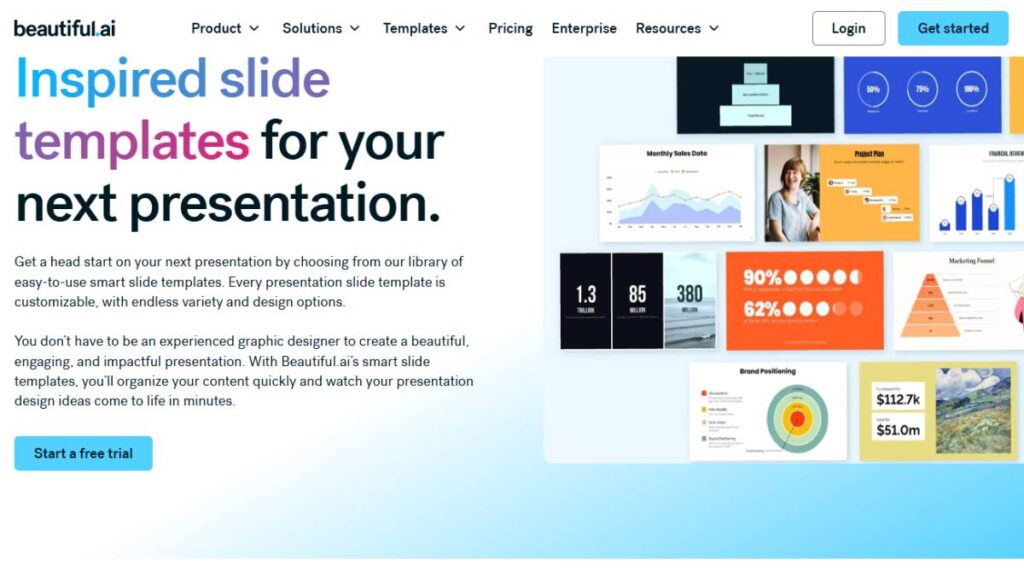
Beautiful.ai is probably the easiest way to make slides look good without sweating the small stuff. The templates adjust themselves as you add content, so there’s very little fiddling with spacing or alignment.
- Strengths: Clean, modern slides; automatic layout; minimal manual work
- Weaknesses: Can feel a bit rigid if you want something totally custom
- Best for: Quick business decks, client meetings, small team presentations
Basically, if time is short and the slides still need to look polished, this one saves a lot of headache.
Tome – Storytelling First
Tome isn’t about flashy graphics; it’s about guiding your ideas into a story. Slides end up feeling like a narrative rather than a list of bullet points, which keeps the audience engaged.
- Strengths: Helps with flow, clean, minimal design, subtle prompts for story structure
- Weaknesses: Less control for image-heavy or highly branded slides
- Best for: Pitches, lessons, startup presentations
It’s one of those tools that quietly keeps things readable and structured, without forcing a formula.
Slidebean – For Pitch Decks That Impress
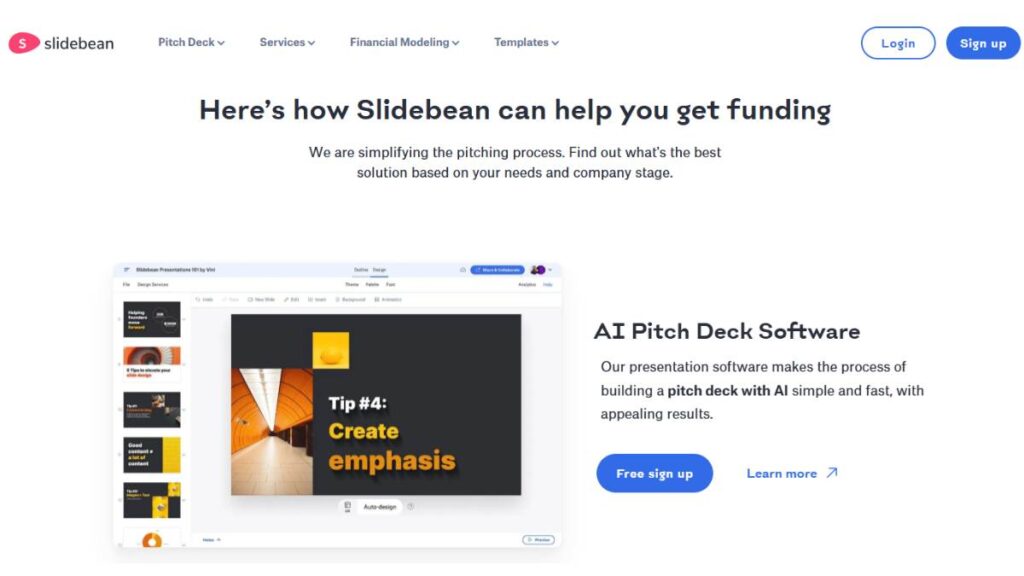
Slidebean is the go-to for investors. You put in the content, and it arranges it into professional-looking slides. The software handles layout, spacing, and simple visuals.
- Strengths: Fast formatting, clean graphs, pitch-friendly templates
- Weaknesses: Templates can feel restrictive if creativity is needed
- Best for: Investor decks, product launches, concise business presentations
It’s good at enforcing brevity. No slide gets overloaded with text, which is a lifesaver when you need the audience to actually pay attention.
Canva AI Presentations – Flexible and Familiar
Canva is everywhere, and the AI features just make it faster. There are tons of templates, easy drag-and-drop visuals, and plenty of room to tweak fonts, colors, and layout.
- Strengths: Huge template library, collaborative, flexible for branding
- Weaknesses: AI suggestions sometimes feel generic for niche topics
- Best for: Marketing, education, small businesses
It’s the sweet spot between guidance and freedom; you can follow a template or just wing it and still get something that looks professional.
Visme AI – Great for Data and Interaction
Visme is all about showing numbers well. Charts, graphs, and interactive visuals look good and are easy to digest. Perfect for turning boring stats into something the audience actually follows.
- Strengths: Visual data tools, interactive slides, modern templates
- Weaknesses: Overkill if all you need are simple slides
- Best for: Reports, analytics presentations, lessons with numbers
It’s one of the few tools where complex data can look clean and engaging instead of messy and confusing.
Pitch.com – Team Collaboration Made Easy
Pitch.com is made for teams. Multiple people can edit a deck at the same time, leave comments, and keep the style consistent. Templates are simple but modern.
- Strengths: Collaboration, version control, clean layouts
- Weaknesses: Fewer AI content suggestions than some competitors
- Best for: Agencies, remote teams, group projects
It doesn’t try to do your thinking for you, but it makes group work much less chaotic; worth its weight in gold if multiple people need input.
Designs.ai – Slides That Pop Visually
Designs.ai leans heavily on visuals. It suggests images, colors, and layouts so your slides feel polished. Text gets structured, too, but the focus is really on making things look appealing.
- Strengths: Strong visuals, auto-styling, fast output
- Weaknesses: Minimal help with story or text flow
- Best for: Marketing presentations, social media decks, visuals-heavy content
If the goal is eye-catching slides rather than heavy storytelling, this one does the job nicely.
Decktopus – Quick and Practical
Decktopus is simple. Give it your topic, and it lays out slides, headings, and content suggestions. It’s not fancy, but it’s fast.
- Strengths: Quick setup, ready-made layouts, easy interface
- Weaknesses: Can feel formulaic, less creative freedom
- Best for: Internal meetings, fast presentations, short deadlines
It’s the kind of tool you use when time is tight, and the deck just needs to look competent. No extra fluff.
Each of these tools shines in a different way. Some are about visuals, others about storytelling, and some are great for team collaboration. Picking the right one comes down to what the presentation needs. The right tool won’t do all the thinking for you, but it will smooth out the tedious stuff so the slides actually serve your message; and that’s what really matters.
Gamma.app – Minimalist and Story‑First
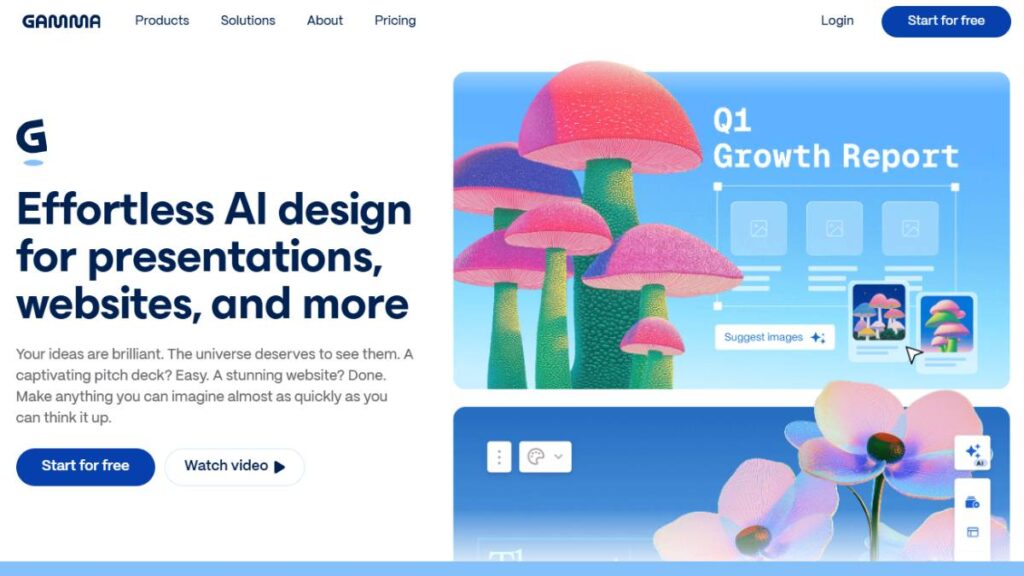
Gamma isn’t like your usual slide tool. It feels more like a visual document you scroll through than a stack of slides. That can be a good thing. For content that’s more like a narrative, think walkthroughs, proposals, case studies; it feels natural. The layout is clean, almost stripped down. Not a ton of bells and whistles, but that’s sort of the point. You’re not fighting with clutter. You focus on the message, and the visuals support it without shouting.
- Best use: Story‑driven presentations, visual essays, internal strategy share‑outs
- Quirk: It’s not slides in the classic sense, which some people love, and others find odd at first
Microsoft PowerPoint with Copilot – Familiar, but Smarter
Most people have used PowerPoint at some point. With Copilot, it feels like PowerPoint finally caught up with expectations. It can suggest slide layouts, help tidy up text, and offer visual recommendations, all right inside the familiar ribbon and editing area. No new ecosystem to learn, which is huge for teams already entrenched in Microsoft tools. It won’t write an entire deck perfectly, but it takes a lot of the busywork off your plate.
- Best use: Traditional business decks, reports, quarterly reviews
- Quirk: Still PowerPoint at heart, so it sometimes nudges you back into old habits
Google Slides + AI Add‑Ons – Familiar Base, Expanded With Plugins
Google Slides itself doesn’t build entire decks from scratch with AI, but couple it with AI add‑ons (like content generators or smart design assistants), and suddenly it speeds up a lot of grunt work. It’s a bit of a DIY approach; you pick which add‑ons help, but that means you don’t have to leave the Google ecosystem if you’re already using Docs, Drive, etc.
- Best use: Collaborative workflows, educational settings, real‑time team edits
- Quirk: It’s not one tool doing everything; you’re picking helpers
Prezi + AI Tools – Mapping Ideas, Not Just Slides
Prezi has always been its own beast. Instead of linear slides, it lets you zoom in and out of content, like a mind map with motion. Add AI on top of that, and the tool can suggest how ideas connect visually. Instead of flipping from slide to slide, you traverse concepts in space. It’s different; sometimes a bit dizzying at first, but very effective when you want to show relationships or journeys rather than bullet lists.
- Best use: Concept mapping, training sessions, idea walkthroughs
- Quirk: Not traditional slides, and that’s the point
Haiku Deck – Simple, Visual, Fast
Haiku Deck is straightforward. It doesn’t try to generate whole decks with fancy AI, but it makes visuals super easy. Big images, simple layouts, clean text. If your style is “less text, more visuals,” this tool fits. It’s not as deep in automation as some others, but for straightforward, image‑forward decks that need to look good quickly, it’s hard to beat.
- Best use: Visual storytelling, keynote talks, pitches with big imagery
- Quirk: Not for data‑heavy or text‑heavy presentations
Pitchwiz – Quick Drafts and Simple Templates
Pitchwiz is a newer name in the scene. It takes a lightweight approach: rapid slide generation from quick inputs. Not deeply AI‑heavy, but it gets a draft on screen fast and gives you basic template ideas so you’re not staring at a blank page. It helps get something rough ready, and then you refine from there.
- Best use: Fast first drafts, quick internal demos, meeting starters
- Quirk: Drafts feel boilerplate until you personalize them
SlidesAI.io – Add‑On That Fills in Slides From Text
SlidesAI works with tools you might already use, like Google Slides, and turns paragraphs into slide content. Paste in your text, and it’ll suggest headlines, bullet points, and basic structure. It’s not a full standalone deck builder, but it saves a ton of time when you’re starting from a chunk of text.
- Best use: Turning reports or notes into slides fast
- Quirk: It doesn’t do visuals or design; that’s still on you
Zoho Show + AI Enhancements – Part of a Bigger Suite
Zoho Show comes from a larger suite of office tools. With AI enhancements, it helps with layout suggestions and visual placement. It doesn’t reinvent the wheel, but if your organization already uses Zoho apps, it fits right in and speeds up standard slide creation. It’s reliable and doesn’t get in the way.
- Best use: Teams already in the Zoho ecosystem
- Quirk: Not as flashy as some niche presentation tools, but it gets the job done
Renderforest Presentation Maker – Payoff for Beginners
Renderforest isn’t just presentations; it’s got videos, graphics, and easy ads. For someone who isn’t a designer, it’s generous with visuals. Templates come with bold graphic elements out of the box. You don’t have to build from scratch, which is great for beginners or anyone with a short deadline.
- Best use: Simple branded decks, marketing sharing, and beginners
- Quirk: Visuals are bold; sometimes a bit too bold
Visually (Merged Platforms) – Design Focus Over Automation
Visually’s strength has always been its design chops; think infographics and polished visual assets. It’s less about AI doing the whole deck for you and more about giving you a head start with strong design elements you can drop into slides. Great when visuals are the story.
- Best use: Infographic‑style presentations, highly visual content
- Quirk: Requires hands‑on design sense to get the most out of it
How to Choose the Right AI Presentation Builder
Picking a presentation tool isn’t as simple as looking at a list and picking the fanciest one. A lot of times, what looks shiny ends up being frustrating. There are a few things that really make a difference, and they’re easy to overlook.
- Ease of use matters more than features sometimes. A tool can have all the bells and whistles, but if it takes fifteen minutes just to figure out where the layout controls are, it’s going to slow things down. Drag-and-drop is king, and sensible templates are a lifesaver.
- Think about what kind of AI help you actually need. Some tools will lay out slides, suggest graphics, and even reword bullet points. Others just offer gentle nudges. Too much “automation” can feel constraining, too little leaves you doing all the tedious work.
- Cost and trial options are not trivial. A free trial is almost mandatory. It lets you test if the tool works with the way your team thinks, not just how the software thinks.
- Integration with existing workflows. If your team is deep into Google Workspace or Microsoft 365, a tool that plugs in without forcing copy-paste madness is worth its weight in gold.
A little planning upfront, listing what features matter, what type of decks you make most, and what your team can handle, will save way more time than hopping between five different tools later.
Tips for Creating Better Presentations Using AI
AI makes things faster, yes. But it doesn’t replace judgment. A deck that looks neat can still be boring or confusing if it doesn’t tell a story. Some practical tips:
- Blend human storytelling with AI design. Let the tool handle spacing, alignment, and colors, but the narrative, the flow of ideas, still comes from people. That’s what keeps slides memorable.
- Keep it concise. Even if AI fills slides automatically, remember: bullets, short phrases, and relevant visuals communicate better than paragraphs. Less really is more.
- Use AI to assist, not dictate. Templates and recommendations are guides. Tweak them. Swap a color, replace an icon, adjust the spacing. Those small adjustments make a big difference in how “alive” a deck feels.
- Think about the audience. AI can suggest order and visuals, but it won’t know which points your audience cares about most. Slide pacing, emphasis, and flow still need human judgment.
It’s funny; sometimes a tiny imperfection or hand-tweaked element makes a presentation feel more human. Perfectly polished AI decks can come off sterile if you’re not careful.

Enroll Now: AI Marketing Course
SEO Tips for Your AI-Generated Presentations
If presentations are going online, say as downloadable slides, embedded decks, or part of a blog, they can actually attract attention beyond the room. AI can generate slides fast, but search engines and AI assistants need context to understand what’s there. A few practical things to keep in mind:
- Add alt-text for visuals. Charts, graphs, icons; describe them. It helps visually impaired users and search engines alike.
- Use headings and bullet points. Structured slides are easier to parse. Both humans and AI “read” them better this way.
- Optimize text for voice search or AI summaries. Short, clear phrases work best. Long, winding sentences are tough for algorithms and assistants to summarize correctly.
- Provide context around the deck. Hosting slides online with a transcript, description, or short summary gives machines extra signals and helps people understand your content, too.
The idea isn’t to trick the system. Just make the content understandable. Small things like descriptive text and clear structure go a long way in extending the reach of your slides.
Future of AI Presentation Builders
The way these tools are moving, it’s clear presentations are not going to look the same in a few years. They’re slowly shifting from simple slide-making apps to assistants that actually help shape your message. Not perfect, not flawless, but definitely faster than doing everything by hand.
A few trends to watch:
- Better content nudges: Expect AI to suggest more than layouts. It might hint at story order, which points to highlight first, or even flag weak transitions. It won’t write your story for you, but it can stop glaring missteps.
- Smarter visuals: Stock photos are fine, but soon the AI might pick images, icons, or charts that genuinely match the content. Less “generic slideshow,” more coherent visuals that actually tell the story.
- Fewer tool-hopping headaches: Integration is getting smoother. Slides talking to your docs, spreadsheets, and even video editors. No more copying, pasting, reformatting ten times.
- Live adjustments: Some platforms are experimenting with decks that react as you present, like adjusting slides or highlighting points based on audience input. Might sound futuristic, but it’s starting to happen in niche tools already.
Looking further out, decks might feel more like experiences than slides. Think: interactive, dynamic, adaptive. But, and this is big, human judgment is still central. AI can suggest, guide, and speed things up, but someone still has to decide what actually matters and what resonates with the audience.
Conclusion
Bottom line: AI presentation builders are useful, but they don’t replace the human brain. They take the boring, repetitive stuff off your plate; alignment, spacing, template choices; so more energy goes into thinking about the story, the flow, and what the audience actually cares about.
A few things to keep in mind:
- Tools are helpers, not miracles. They make slides look good, but they can’t read a room or adjust tone. That’s your job.
- Test before committing. Free versions or trials give a sense of whether the tool actually fits your style. Saves wasted money and frustration.
- Balance tech with judgment. Let AI handle grunt work. You handle messaging, pacing, and the creative spark. That’s what makes slides memorable, not just pretty.
In short, these tools are worth exploring. But don’t forget, the human touch still makes the difference. The AI can do a lot, but the ideas, the tweaks, the little choices that make a deck land? That’s all on you.
FAQs:
1. What is an AI presentation builder?
It’s a tool that helps get slides together without starting from scratch. Not magic; more like a helper that handles layout, image placement, and formatting. You still have to tell the story and pick the tone, but it saves the boring bits, so the deck doesn’t take forever.
2. How does AI create slides automatically?
Basically, it reads what you type and tries to figure out what goes where. Headings, bullet points, charts; it arranges them in a way that makes sense. Often it’s not perfect, sometimes a bit generic, but it beats moving boxes around for hours.
3. Are AI presentation builders free to use?
Some offer free tiers, usually limited templates and exports. For anything beyond basic decks, you’ll likely need a paid plan. Free versions are good for testing or one-off projects, just don’t expect them to replace professional-grade tools entirely.
4. Which AI presentation tool is best for business presentations?
Depends on what matters. Professional templates, charts, branding options, and collaboration; pick the one that fits your team’s workflow. Some are better for numbers-heavy decks, others for storytelling. Often, the “best” is the one that doesn’t slow you down.
5. Can AI help design visually appealing slides?
Yeah. It handles spacing, alignment, and color choices, sometimes even suggests images. But don’t expect it to read the room; it won’t know if a visual really hits the point. You still have to guide it, pick what actually communicates your message.
6. How do AI presentation builders save time?
They take care of the repetitive stuff: formatting, alignment, layout. You focus on content. It’s like prepping the stage for you while you rehearse the lines. For teams, this can cut hours off a deck that would normally drag on.
7. Is AI presentation software suitable for students?
Absolutely. Quick way to turn notes into slides without obsessing over design. Helps when deadlines are tight. But remember, flashy slides don’t replace clear ideas; you still have to know your stuff.
8. Can AI suggest content for slides?
Some tools do. You type a topic, and it outputs bullet points or summaries. Not always perfect, sometimes vague, but it’s a starting point. Good for brainstorming or turning long content into digestible slides.
9. How do I choose the right AI presentation builder for my needs?
Think about workflow, ease of use, templates, and export options. Try free versions first. Make sure it fits your existing tools; nothing worse than a shiny new app that complicates the process.
10. Are AI-generated presentations compatible with PowerPoint or Google Slides?
Most are, yes. You can export or even edit directly. That’s handy for sharing or further tweaking. Keeps things flexible instead of locking you into one platform.
11. Can AI presentation builders create interactive presentations?
Some can. Clickable menus, animations, and embedded media, but usually need some manual tweaks. The AI handles layout, but making slides truly interactive often takes a human touch.
12. What are the top AI presentation tools?
There are quite a few;Beautiful.ai, Tome, Slidebean, Canva AI, Decktopus, Visme AI, Pitch.com, Designs.ai. Each has quirks. Some are better for speed, others for storytelling, others for data-heavy slides. Pick what matches your workflow.
13. How accurate are AI-generated slide designs?
Pretty good with alignment and general layout, but won’t always nail content logic. Complex or niche topics usually need a human eye. Treat the output as a draft to polish.
14. Can AI help with charts, graphs, and data visualization?
Yes, it suggests charts and designs automatically. Saves a lot of formatting time. But always double-check the numbers; AI can make things look nice, but you have to make sure it’s right.
15. Do AI presentation builders support team collaboration?
Many do. Share decks, leave comments, track edits. Cuts down on emailing versions back and forth. Essential for teams, especially under deadlines.
16. Are AI presentation builders secure for confidential projects?
Depends on the platform. Some encrypt, some are cloud-only. Sensitive info should be checked carefully. When in doubt, consider offline storage or exporting.
17. How can AI improve storytelling in presentations?
It helps organize ideas and highlight key points. Doesn’t tell a compelling story on its own, but it structures information so you can focus on flow, pacing, and impact.
18. Can AI help with pitch decks for startups?
Yes. Suggests layout, key sections, visuals. But your messaging, metrics, and clarity still matter more. AI just speeds up the visuals.
19. What features should I look for in an AI presentation builder?
Templates, AI suggestions, image/chart support, export options, and collaboration. Bonus if it plays nice with your other tools. Balance automation with control.
20. Will AI presentation tools replace human designers?
Nope. They handle tedious work and make suggestions, but creativity, storytelling, and audience understanding still come from humans. The best decks combine both.