
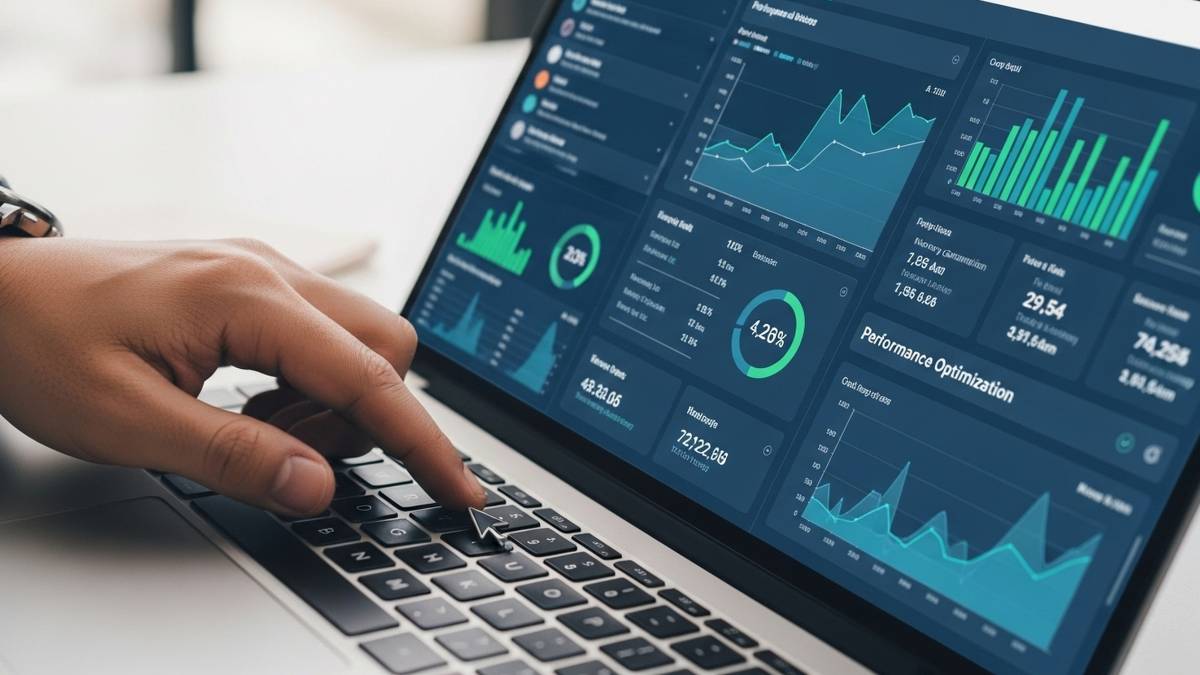
Figuring out how to generate AI dashboards with Looker Studio usually starts with a bit of trial and error. The tool is pretty friendly once the data behaves, but getting to that point, yeah, that’s where most folks slow down. After the sources are cleaned up and connected, Looker Studio almost “opens up,” letting AI-driven visuals fall into place without too much fuss. The magic isn’t in fancy tricks; it’s in choosing the right metrics and letting the dashboard tell the story. Once everything settles, the dashboard becomes this handy, everyday guide that quietly keeps the team on track. Not flashy. Just genuinely useful.
Table of Contents
Introduction to AI Dashboards and Looker Studio
Data in its raw form is… well, kind of useless if it just sits in a spreadsheet. Numbers are great, but they rarely tell the whole story at a glance. That’s where an AI dashboard comes in. Think of it as a smart panel that pulls in numbers from different sources, crunches them, and surfaces patterns you’d otherwise miss. It doesn’t just show what happened; it can hint at what’s coming next.
Businesses generate heaps of data daily: marketing clicks, sales records, customer interactions, but most of it isn’t actually useful unless it’s organized and visualized well. AI dashboards help make sense of it without staring at endless rows of numbers. You get charts, trends, predictive signals, all in one place.
Looker Studio makes this easier than it sounds. It connects to almost anything: Google Analytics, BigQuery, Sheets, and even APIs from other apps. Plus, it’s flexible; you can start with a template or build something custom. The key is that it balances depth and usability. You don’t have to be a data engineer to make something that actually helps decision-making.
Understanding Looker Studio for AI Analytics
Before jumping into dashboards, it helps to understand what Looker Studio brings to the table. Unlike some traditional BI tools that feel… heavy, Looker Studio is surprisingly nimble. Yet, it’s still powerful enough to handle fairly complex analytics.
Connect to multiple sources at once. You can blend website data, sales data, ad campaigns, and CRM records all on the same dashboard. It’s a huge time-saver.
Custom visuals that actually make sense. Looker Studio doesn’t lock you into boring charts. From scorecards to trend lines to heatmaps, every visual can highlight what matters most.
Real-time updates. If your data changes, the dashboard reflects it almost immediately. No more exporting CSVs every morning and manually updating things.
Compared to Tableau or Power BI, Looker Studio is simpler to start with. Tableau is excellent for heavy-duty analytics, but it’s also… a bit intimidating if your team isn’t deeply technical. Looker Studio gives a lot of the same power with less setup and less friction.
The real advantage is that even non-technical folks can put together dashboards that show trends, track KPIs, and pull in predictive insights, without losing their minds in formulas or complicated back-end setups.
Preparing Data for AI Dashboards in Looker Studio
A dashboard is only as good as the data behind it. Skip this step, and you’ll end up with charts that look nice but are essentially meaningless.
Pick the right data sources. Ask yourself what questions the dashboard is supposed to answer. Marketing performance? Check Google Analytics, Ads, and CRM data. Sales or operations metrics? BigQuery or Sheets might be better. Make sure the sources are reliable.
Clean things up. Duplicate entries, inconsistent naming, messy dates… all that will trip up your dashboard. Spend the time upfront cleaning and structuring the data. It’s tedious, sure, but it saves headaches later.
Blend data smartly. Looker Studio lets you combine data from different sources. For example, web traffic from Analytics plus purchase data from your CRM gives a fuller picture of customer behavior. More complete data means more useful insights.
Think of this stage like laying the foundation of a house. It’s not glamorous, but skip it, and nothing else will hold up properly. Good prep now = dashboards that are accurate, actionable, and, most importantly, trustworthy.
How to Generate AI Dashboards with Looker Studio
Building an AI-focused dashboard in Looker Studio isn’t about doing everything “by the book.” It’s more about setting things up in a way that people on your team can actually use without getting lost. The tool is flexible, almost to a fault, so a bit of structure early on saves you later headaches.
Step 1: Set up your Looker Studio account and workspace
Start simple. Get the account sorted, put dashboards into a dedicated folder, and label your data sources in a way that future-you won’t curse. Most teams underestimate how quickly things get messy once multiple data connections and drafts pile up.
A tidy workspace also stops that “which version is correct?” conversation… the one everyone secretly dreads.
Step 2: Pick a template that fits AI data, or skip it and build fresh
Templates can help when you’re staring at a blank canvas and trying to decide where KPIs should sit or how the layout should flow. Some templates already include spaces for forecast lines or segmented breakdowns, which saves time.
But honestly, a custom layout often ends up cleaner. Teams know what decisions they make daily; the dashboard just needs to match that rhythm. If something looks cramped or overly shiny, it’s usually a sign to start from scratch and build only what’s necessary.
Step 3: Add charts and visuals that can actually carry AI-driven metrics
AI metrics behave differently. They jump, fluctuate, and sometimes look odd if the chart type doesn’t match the story they’re supposed to show. So it helps to stick to visual formats that respect that nuance:
- Time-series charts work great for prediction ranges.
- Scorecards keep key numbers front and centre without noise.
- Tables help when you’re comparing model outputs across segments and want to see what’s quietly shifting.
- Heatmaps are surprisingly good at surfacing outliers or “hey, that looks off” moments.
And don’t overcrowd the canvas. When predictive numbers sit next to too many bright visuals, they lose their weight.

Enroll Now: Product Marketing Course
Step 4: Bring in the machine learning insights, cleanly and clearly
Once your datasets are connected, whether they’re coming from Sheets, BigQuery, or an API, everything behaves like a normal source inside Looker Studio. The trick is the labelling. AI outputs often sound like they were named by someone who had ten seconds left before a deadline.
Renaming columns to something any team member can understand goes a long way. A short label, maybe a tiny description in the corner, suddenly makes a dashboard feel less intimidating.
This little bit of clarity is what gets people to trust the numbers enough to use them.
Step 5: Shape KPIs and metrics around real decisions, not data overload
A dashboard becomes useful the moment it stops trying to show everything. A good filter is asking, “Would anyone change something because of this metric?” If not, it can go lower on the page or into a secondary view.
Most reliable dashboards keep:
- A handful of KPIs
- A couple of trend or prediction visuals that explain what’s shifting
- Supporting metrics tucked beneath the main section
It sounds counterintuitive, but removing things usually makes the insights stronger. There’s room for the important numbers to breathe.
Step 6: Share, embed, or automate the reporting flow
When the dashboard feels solid, get it in front of people who need it. Looker Studio makes sharing easy, but a few small choices make a big difference:
- Use view-only access for most users to avoid accidental edits.
- Set up scheduled email snapshots for teams that hate checking links.
- Embed the dashboard inside internal pages or wikis if you want it to become part of day-to-day habits.
A dashboard becomes valuable only when it’s consistently seen. And sometimes, the quiet discipline of distribution does more for adoption than another fancy chart ever could.
Advanced Tips for AI Dashboard Optimization in Looker Studio
Once the main dashboard is working, the real improvement usually comes from the small refinements, the kind that make insights pop without overwhelming people. A few tweaks here genuinely elevate the whole experience.
Use calculated fields and AI-style formulas for more dynamic insights
Looker Studio gives plenty of room to build custom calculations when the original dataset doesn’t quite say what you need. These fields help shape predictions into something more readable or actionable.
For example, you can:
- Create uplift or deviation fields to highlight how current performance compares to predicted outcomes
- Build small composite metrics that combine multiple AI-driven values into a single view
- Surface leading indicators your team watches closely, even if they weren’t provided directly in the dataset
These formulas don’t need to be fancy. They just need to make the dashboard smarter than a raw data dump.
Also Read: Prompts for AI Social Media Content
Apply conditional formatting thoughtfully
Predictive alerts shouldn’t scream at people. They should guide them. Good formatting nudges attention toward what matters, instead of throwing red blocks all over the page.
Use color sparingly, only when something truly needs a second look
Highlight anomalies or sudden changes in softer tones, so they feel like signals, not alarms
Keep formatting consistent across charts and tables; jumping color logic confuses readers more than it helps
Subtle cues often work better than dramatic ones. They keep the dashboard readable even on busy days.
Optimize performance for larger datasets
AI datasets tend to be heavier than traditional ones, and dashboards can slow down if they aren’t handled with care. A sluggish dashboard loses trust quickly.
A few tactics help keep things fast:
- Limit the number of blended data sources; blend only where it adds real value
- Remove unused fields and dimensions that just sit in the background
- Switch charts to “extract data” mode when real-time updates aren’t necessary
- Break massive dashboards into tabs or sections, so you’re not loading everything at once
A fast dashboard gets used. A slow one gets bookmarked and forgotten.
Also Read: AI Photo Generator Tools
Common Mistakes to Avoid When Creating AI Dashboards
Even experienced teams fall into familiar traps when working with AI-driven dashboards. Most of them are easy to avoid if you catch them early.
Overstuffing the dashboard with AI metrics
It’s tempting to show every prediction, every score, every probability. But the more you add, the harder it becomes to understand anything. A cluttered dashboard feels like a data warehouse, not a tool for decisions.
A useful habit is to keep the main view tight and move secondary or experimental metrics lower on the page.
Skipping data accuracy checks or ignoring model limitations
Dashboards often get built with the assumption that the underlying data is flawless. That rarely holds true. AI outputs can drift, models misfire, or older data sources can skew results.
Even a simple monthly check, whether trends still match reality, can prevent a dashboard from quietly going off-track.
Forgetting the user experience
A dashboard is not a proof of technical capability; it’s a decision tool. If someone has to squint, click five filters, or decode labels to understand one trend, the dashboard hasn’t done its job.
Common UX misses:
- Text that’s too small or too dense
- Charts stacked without breathing space
- Predictive graphs without a clear context
- KPIs that compete for attention instead of guiding it
Simple layouts nearly always outperform clever ones.
Use Cases: AI Dashboards in Looker Studio
AI-driven dashboards shine when they’re tied to real operational decisions. Looker Studio handles these scenarios surprisingly well because most teams already manage their core data through tools that connect directly.
Marketing and sales performance dashboards
Teams often use these dashboards to understand:
- Which campaigns are trending above or below expected performance
- Forecasted revenue from active funnels
- Shifts in acquisition costs and the probability of meeting monthly targets
Layering predictive signals over everyday metrics helps teams react before numbers dip too far.
Operations and logistics monitoring
Operations teams lean on AI dashboards to spot issues earlier than manual checks would allow. Common uses include:
- Monitoring supply chain fluctuations
- Predicting delays based on live patterns
- Identifying recurring bottlenecks across regions or vendors
These dashboards tend to be more utilitarian, but they’re incredibly impactful when they highlight something that would otherwise go unnoticed until too late.
Finance and performance KPIs
Finance teams prefer cleaner, steadier dashboards. AI elements usually help with:
- Forecast accuracy tracking
- Cash flow predictions
- Variance explanations that blend historical trends with future projections
When financial dashboards are done well, leadership starts relying on them as a pulse check rather than a periodic audit.
Also read: How to track KPIs using AI analytics tools
Conclusion:
At some point, every team hits that wall where there’s data everywhere, but no one’s really sure what it’s trying to say. An AI-focused dashboard in Looker Studio helps untangle that mess. Not because the charts are pretty; half the time they won’t be at the start, but because the right signals finally sit where people can see them. Decisions start happening faster. Meetings get shorter. Folks argue a little less about “gut feeling.”
The general process isn’t complicated, though it always takes a few passes. Set things up cleanly, make sure the data isn’t a disaster, pick visuals that actually tell the story (not just decorate it), and keep adjusting once the team starts poking around. After a while, the dashboard settles into this rhythm of its own. Almost like a working system that grows with the business instead of getting stale after the initial excitement fades.
Looker Studio happens to play nicely with this way of working. It’s flexible enough to try odd ideas, scrap them, and try again without feeling like you’ve broken anything. And once predictive or automated pieces get layered in, the whole thing starts to feel less like a report and more like a quiet assistant nudging the team in the right direction.
If there’s one point that tends to stick, it’s this: dashboards aren’t one-shot builds. They find their shape gradually, the same way a good process does. Iteration wins every time.
FAQs: Generating AI Dashboards with Looker Studio
What’s the difference between a regular dashboard and an AI dashboard?
A standard dashboard is basically a mirror; you get the numbers from last week or last quarter, and that’s about it. An AI dashboard takes the next step by surfacing things people might miss: patterns that repeat, dips that shouldn’t be there, and forecasts that hint at what’s coming. It’s less about “what happened,” and more about “here’s what to keep an eye on.”
Can Looker Studio integrate with Google BigQuery for AI analytics?
Yes. And usually that’s where the heavier stuff lives anyway; model outputs, large tables, all the bits that don’t fit neatly into a spreadsheet. The connection is straightforward once the dataset is ready.
How do you add predictive analytics charts in Looker Studio?
Predictive fields need to exist in the dataset first: forecast columns, probability scores, anomaly flags. Once they’re in place, they can be dropped into charts the same way as any other metric. The prep work happens before Looker Studio ever sees the data.
Are AI dashboards in Looker Studio suitable for small businesses?
Definitely. Smaller teams often gain the most because they don’t have time for endless reporting. A compact dashboard with a couple of smart predictions can save hours each week.
How often should AI dashboards be updated?
That depends entirely on the data source. Daily work for many. Hourly if the business moves fast. Predictive fields might need a quick check now and then just to make sure they still match reality.
Can dashboards be shared with non-Google users?
Yes, permissions determine everything. View-only links usually cover most stakeholder needs.
Any best practices for visualizing machine learning insights?
Keep things grounded. Forecast ranges, probabilities, anything vaguely statistical; give it context. People understand visuals much faster when they don’t have to decode clever formatting.
Can Looker Studio handle real-time data?
It can, assuming the source is real-time. Some systems refresh almost instantly; others don’t. Looker Studio simply reflects whatever it’s fed.
How can performance be improved for large datasets?
A few small tweaks go a long way: extracts, trimming unused fields, keeping blends to a minimum, and not cramming twenty charts onto one page. Each tweak shaves off a bit of load time.
Is coding or SQL required to build AI dashboards?
Not strictly. SQL helps when shaping complex data, but building the dashboard itself is mostly visual work. Many teams split the responsibilities; tech handles the guts, and the rest focus on layout and interpretation.