
If you’ve been hearing about OpenClaw (formerly MoltBot and ClawdBot) and wondered what it is, how it works, and how you can use it on your own computer – you’re in the right place.
OpenClaw is one of the most powerful personal AI assistant platforms available today. Unlike typical AI chat tools that live inside a browser, OpenClaw runs directly on your own computer and connects to messaging platforms like WhatsApp, Telegram, Discord, and more – turning your everyday chat app into a command center for AI-powered automation.
In this OpenClaw setup guide, you’ll learn:
- What OpenClaw (formerly ClawdBot) actually is
- How it’s different from ChatGPT and other generative AI tools
- What it can do in real-world, practical terms
- A step-by-step OpenClaw setup tutorial for beginners (Mac + WhatsApp)
- Real use cases for business, productivity, and personal workflows
- How to use AI assistants safely and responsibly
This is a complete, hand-holding guide designed for people who have never touched a terminal before.
Let’s begin.
Table of Contents
What Is OpenClaw (Formerly ClawdBot)?
OpenClaw is a self-hosted personal AI assistant platform that runs on your own machine and connects to messaging apps like WhatsApp, Telegram, Discord, Slack, and more.
It was previously known as ClawdBot (and then MoltBot), and was later rebranded to “OpenClaw” (apparently after Anthropic objected that the name sounded similar to Claude).
The Big Difference
Most AI tools like ChatGPT, Gemini, or Claude:
- Live in a browser or app
- Only respond to text
- Cannot access your computer, files, or real-world systems natively
OpenClaw:
- Runs locally on your own laptop or server
- Can connect to WhatsApp or Telegram
- Can use “skills” to:
- Browse the web
- Read and write files
- Run commands
- Set reminders
- Automate workflows
- Can store long-term memory
Think of OpenClaw as building your own private Jarvis, rather than just chatting with a public AI.
How OpenClaw Is Different From ChatGPT and Other Generative AI Tools
This is one of the most important things to understand before you start your OpenClaw setup.
ChatGPT / Gemini / Claude
These tools are:
- Cloud-based
- Stateless (they forget most things after sessions)
- Limited to chat, file uploads, and browsing (inside their platform)
- Cannot take real actions on your system
They are excellent thinking tools.
OpenClaw (Formerly ClawdBot)
OpenClaw is a system-level AI assistant. It:
- Runs on your computer
- Has access to tools (“skills”) that can:
- Control files
- Open websites
- Run terminal commands
- Automate tasks
- Lives inside WhatsApp or other chat apps
- Has persistent memory
In simple terms:
ChatGPT is an AI you talk to.
OpenClaw is an AI you work with.
What Can OpenClaw Actually Do?
Here are real, practical things people use OpenClaw for.
Personal Productivity
- Daily WhatsApp briefings
- Task tracking
- Notes and memory
- Research summaries
Business & Marketing
- Competitor analysis
- Content writing
- Ad copy generation
- Funnel and automation design
- Lead follow-ups
Automation
- Website monitoring
- Scheduled reports
- File generation
- System commands
- Data scraping
System Control
With proper skills enabled, you can message:
“Create a folder on my desktop called Reports and generate a PDF summary of today’s AI news.”
And OpenClaw can actually do it.
Before You Start: What You Need
This tutorial is based on:
- MacBook or Mac Mini (even though this works on other OS too)
- Beginner-level technical knowledge
If you are nerdy enough, you can also read the official OpenClaw documentation.
Requirements
- macOS
- Internet connection
- WhatsApp on your phone
- OpenAI API key (or ChatGPT login)
- About 30–45 minutes
How to Set Up OpenClaw (Formerly ClawdBot) – Step-by-Step Beginner Tutorial
This section walks you through the exact setup process used for OpenClaw setup, formerly ClawdBot, using WhatsApp as the chat interface.
Step 1: Open Terminal on Your Mac
Terminal is how we talk to OpenClaw behind the scenes.
- Press Command + Space
- Type:
Terminal - Press Enter
You’ll see a window that looks like:
yourname@MacBook-Pro ~ %Step 2: Install Homebrew (Mac Tool Manager)
Before OpenClaw setup, you will need to install Homebrew.
Homebrew helps install system tools safely.
Paste this into Terminal and press Enter:
/bin/bash -c "$(curl -fsSL https://raw.githubusercontent.com/Homebrew/install/HEAD/install.sh)"Follow the on-screen instructions.
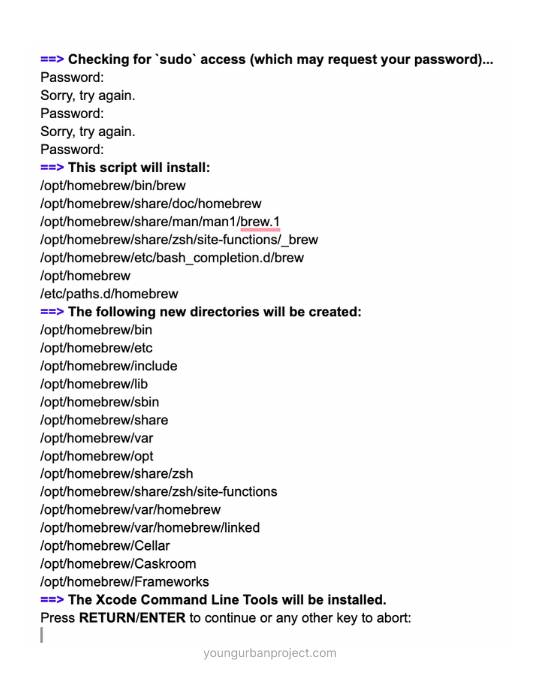
At the end, it will show you commands to add Homebrew to your system. Copy and run them.
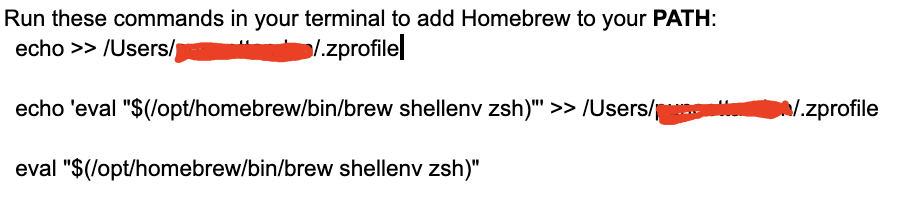
Verify:
brew -vYou should see a version number.
Step 3: Install Node.js (Required for OpenClaw Setup)
OpenClaw runs on Node.js.
Install it with:
brew install nodeVerify:
node -vYou should see a version like v25.4.0 or higher.
Step 4: Install OpenClaw (Formerly ClawdBot)
Now install OpenClaw using the official script:
curl -fsSL https://clawd.bot/install.sh | bash Verify:
clawdbot --version Even though it’s now OpenClaw, the command still uses clawdbot internally.
Step 5: Start the Onboarding Wizard
Run:
clawdbot onboardThis launches a guided OpenClaw setup wizard.
Step 6: Security Confirmation
You’ll see a warning explaining that OpenClaw can:
- Run commands
- Read files
- Send messages
Select Yes and continue.
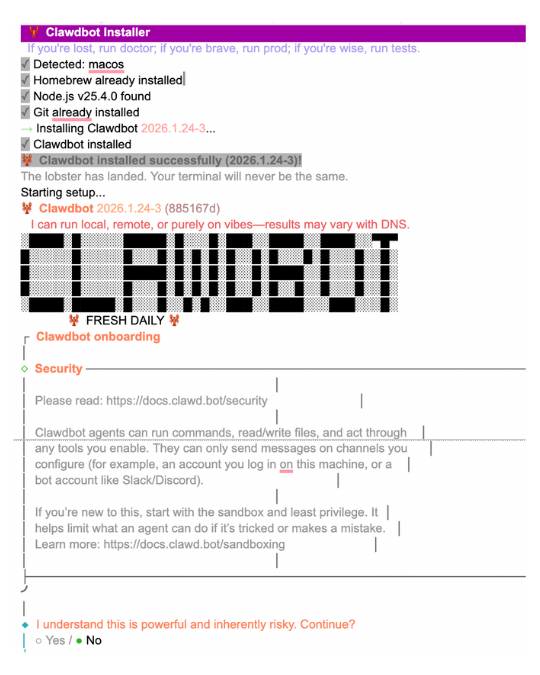
This is important – OpenClaw is powerful, not just a chatbot.
Step 7: Choose OpenClaw Setup Mode
Select:
QuickStart
This gives you safe defaults.
Step 8: Choose AI Provider
Select:
OpenAI
You can also use Claude or others, but OpenAI is the most beginner-friendly. At Young Urban Project, we already use OpenAI API inside our AI-Agents.
Note: Also, checkout our course that teaches you to Build Your 1st AI-Agent.
Step 9: Choose Authentication Method
Select:
OpenAI API Key
This uses your OpenAI credits and is more reliable for background automation.

Step 10: Choose Default Model
Recommended:
openai/gpt-4o-mini
It’s:
- Fast
- Affordable
- High quality
- Stable
You can upgrade later.
Step 11: Choose Channel
Select:
WhatsApp (QR Link)
This lets OpenClaw connect like WhatsApp Web.
Step 12: Scan QR Code
On your phone:
- Open WhatsApp
- Go to Settings → Linked Devices
- Scan the QR code on your Mac
This links OpenClaw as a device.
Step 13: Set Your Phone Number
Enter your own WhatsApp number.
This:
- Makes you the “owner”
- Blocks strangers
- Secures your assistant
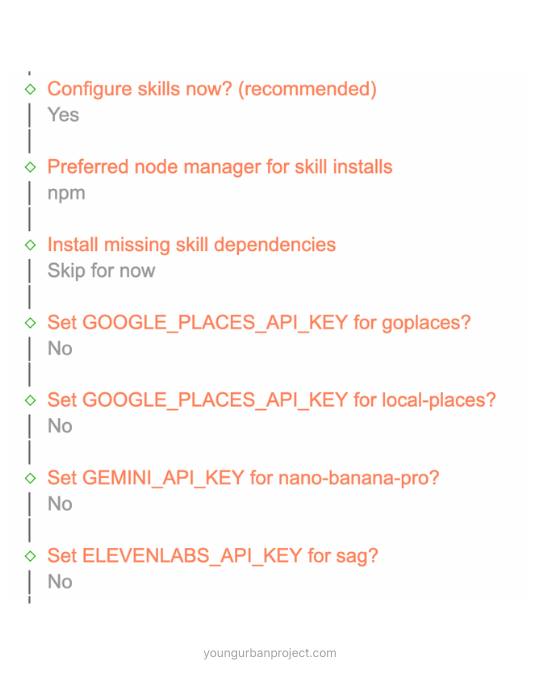
Step 14: Configure Skills
Select:
Yes
This installs the base system for adding powers later.
Step 15: Choose Node Manager
Select:
npm
Most stable for beginners.
Step 16: Skip Optional Dependencies
When asked about installing skill dependencies:
Select:
Skip for now
We’ll keep things simple.
Step 17: Skip Extra API Keys
When asked about:
- Google Places
- Gemini
Select:
No
Step 18: Enable Memory Hook
Select:
session-memory
This gives OpenClaw long-term memory.
Step 19: Gateway Installation
OpenClaw installs a background service so it runs even when Terminal is closed.
You’ll see:
- Gateway installed
- WhatsApp linked
- Web UI link
This means your system is live.
Step 20: Hatch Your Bot
Select:
Hatch in TUI
This is where you “train” your AI.
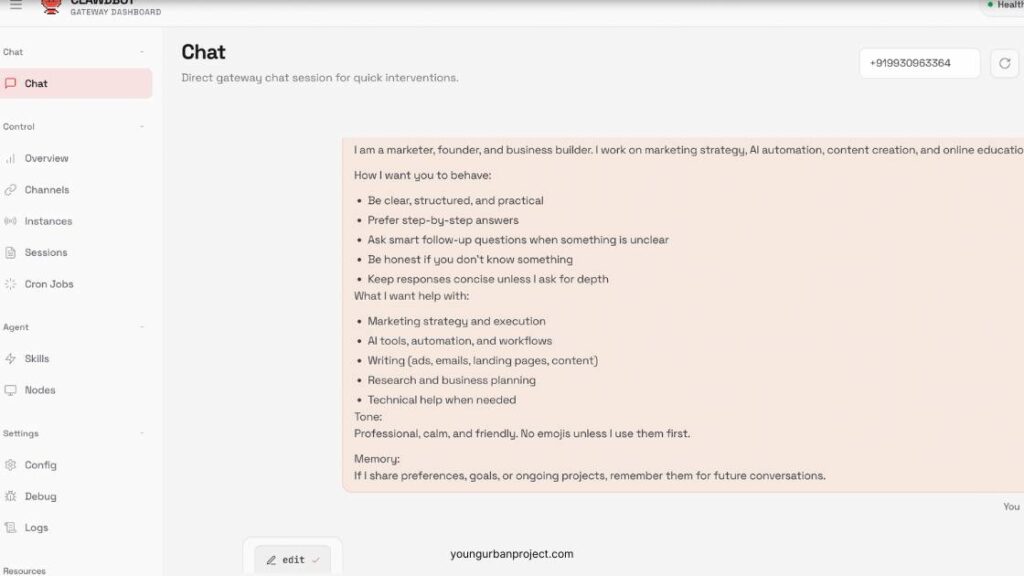
Step 21: Give Your Bot an Identity
Paste something like this:
You are my personal AI assistant.
You are my personal AI assistant. About me: I work in business, marketing, and digital systems. How I want you to behave: - Be practical and clear - Prefer step-by-step answers - Ask questions when needed - Be honest about limits What I want help with: - Business strategy - Content and marketing - Research - Automation and systems Tone: Professional, calm, and concise. Memory: Remember preferences, goals, and ongoing projects.Press Enter.
Step 22: Test on WhatsApp
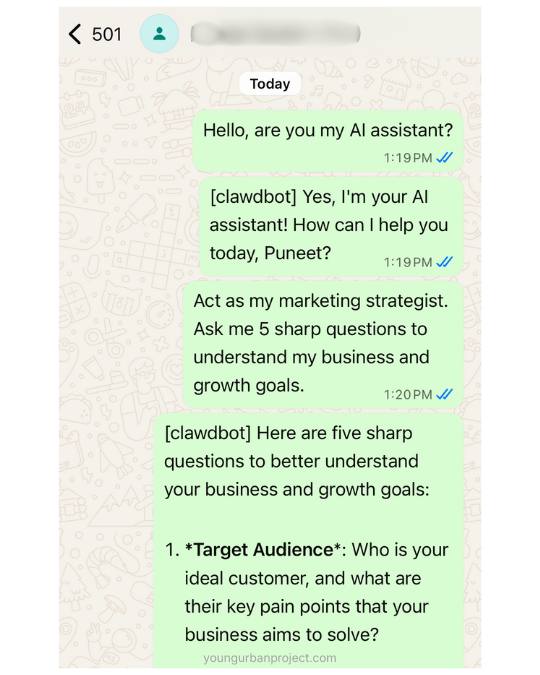
On your phone, message your own number:
Hello, are you my AI assistant?If it replies – congratulations.
Your OpenClaw setup is complete.
Real-World Use Cases for OpenClaw
1. Daily Business Briefings
Send:
“Summarize today’s top AI and marketing news.”
2. Content Creation
“Write a LinkedIn post about AI automation for founders in India.”
3. Research Assistant
“Compare the top AI marketing courses and identify gaps.”
4. Automation Hub
“Every morning at 9am, send me a daily priority checklist.”
5. System Control (Advanced)
“Create a report folder and save today’s research as a PDF.”
How to Be Careful While Using AI Personal Assistants Like OpenClaw
1. Limit Who Can Message It
Only allow your own number or trusted contacts.
2. Be Careful With System Skills
Skills like bash can run real commands.
Don’t enable them unless you understand the risks.
3. Don’t Store Sensitive Data
Avoid storing:
- Passwords
- Financial info
- Private legal or medical data
4. Monitor Logs
Check activity in the dashboard to see what the bot is doing.
5. Use API Keys Securely
Never share your OpenAI or other service keys.
Why OpenClaw (Formerly ClawdBot) Is a Glimpse of the Future
OpenClaw represents a shift from:
“AI as a chatbot”
to
“AI as a system layer.”
Instead of opening tools, dashboards, and apps, you can now message your computer.
This is what makes OpenClaw fundamentally different – and why it’s been gaining attention (even before it rebranded).
Final Thoughts
If you’ve followed this guide, you’ve done something most people haven’t:
You didn’t just use AI.
You built your own AI system.
Your WhatsApp is now:
- A research assistant
- A business partner
- A productivity engine
- An automation hub
And the best part?
It runs on your machine, under your control.
Is OpenClaw (ClawdBot) free?
Yes, OpenClaw is open-source. You pay only for AI API usage (like OpenAI or Anthropic).
Is OpenClaw safe?
It’s as safe as you configure it. Keep permissions limited and numbers allowlisted.
Does OpenClaw (formerly ClawdBot) work without an internet connection?
No. OpenClaw itself runs locally on your computer, but it still needs internet access to:
– Connect to AI models (OpenAI, Claude, etc.)
– Send and receive messages via WhatsApp or other platforms.
– Use browser and search skills.
Without internet, the gateway may stay running, but the bot won’t be able to respond meaningfully.
Is OpenClaw officially supported by WhatsApp?
OpenClaw connects to WhatsApp using WhatsApp’s Linked Devices (Web session) system. This is the same method used by WhatsApp Web and desktop apps.
It does not modify WhatsApp or use unofficial message injection. However, because it is a self-hosted automation tool, you should:
– Use it responsibly.
– Avoid spam or mass messaging.
– Follow WhatsApp’s terms of service.
Can I run OpenClaw on a cloud server instead of my laptop?
Yes. You can install OpenClaw on:
– A VPS (DigitalOcean, AWS, Hetzner, etc.)
– A home server.
– A Raspberry Pi (for light use).
This is useful if you want:
– 24/7 uptime.
– Always-on WhatsApp automation.
– Remote access without keeping your Mac awake.
What happens to OpenClaw if I shut down my Computer?
If your Mac is turned off or asleep:
– OpenClaw will stop running.
– WhatsApp messages will not be answered.
– Scheduled tasks won’t run.
To keep Op always online, you need:
– A server.
– Or a Mac that stays powered on and connected to the internet.
Can multiple people use the same OpenClaw?
Yes, but you must configure it intentionally.
By default:
– Only your number is allowed (allowlist mode).
You can change this to:
– Allow multiple trusted numbers.
– Or use pairing mode where new users request approval.
This is useful for:
– Small teams
– Family assistants
– Internal business tools
Is OpenClaw safe for business or client work?
It can be – if you use it responsibly.
Best practices:
– Do not store sensitive client data in memory.
– Do not enable system-level skills (like bash) on shared bots.
– Keep API keys private.
– Monitor logs regularly.
For agencies and businesses, it’s recommended to:
– Use separate agents for different projects.
– Run OpenClaw on a secure server instead of a personal laptop.
How much does OpenClaw cost to run?
OpenClaw itself is free and open-source.
Your only cost is the AI provider:
For OpenAI:
– GPT-4o Mini → Low cost, great for daily use.
– GPT-5 / GPT-5 Pro → Higher cost, premium quality.
Typical personal usage often stays under a few dollars per month unless you run heavy automations or long research tasks.
Can I switch AI models after setup?
Yes. At any time, run:clawdbot configure
You can change:
– Model.
– Provider (OpenAI, Anthropic, etc.).
– Authentication method.
Your WhatsApp connection and memory will remain intact.
Does OpenClaw store my chat history?
Yes, locally.
Chats are stored on your machine in:~/.clawdbot/agents/main/sessions/
This means:
– You control your data.
– Nothing is automatically sent to OpenClaw’s servers.
– You can back up or delete conversations manually.
Can OpenClaw send proactive messages?
Yes – with the cron skill enabled.
Examples:
– Daily morning briefings.
– Weekly business reports.
– Reminders.
– Alerts when websites change.
This turns OpenClaw from a chatbot into a personal notification system on WhatsApp/Telegram/Slack.
Is OpenClaw legal to use?
Yes. OpenClaw is open-source software that runs on your own machine.
However, you are responsible for:
– Following the terms of service of platforms you connect (WhatsApp, Telegram, OpenAI, etc.).
– Not using it for spam, scraping private data, or automation abuse.
Can OpenClaw read and write files on my computer?
Yes – if you enable file or bash skills.
This allows things like:
– Creating documents.
– Saving research.
– Generating reports.
– Organizing folders.
This is powerful and should only be enabled for trusted, private bots.
Can I run multiple OpenClaws on one machine?
Yes. OpenClaw supports multiple agents.
Each agent can:
– Have its own memory.
– Use a different AI model.
– Serve a different purpose (business bot, research bot, personal bot).