
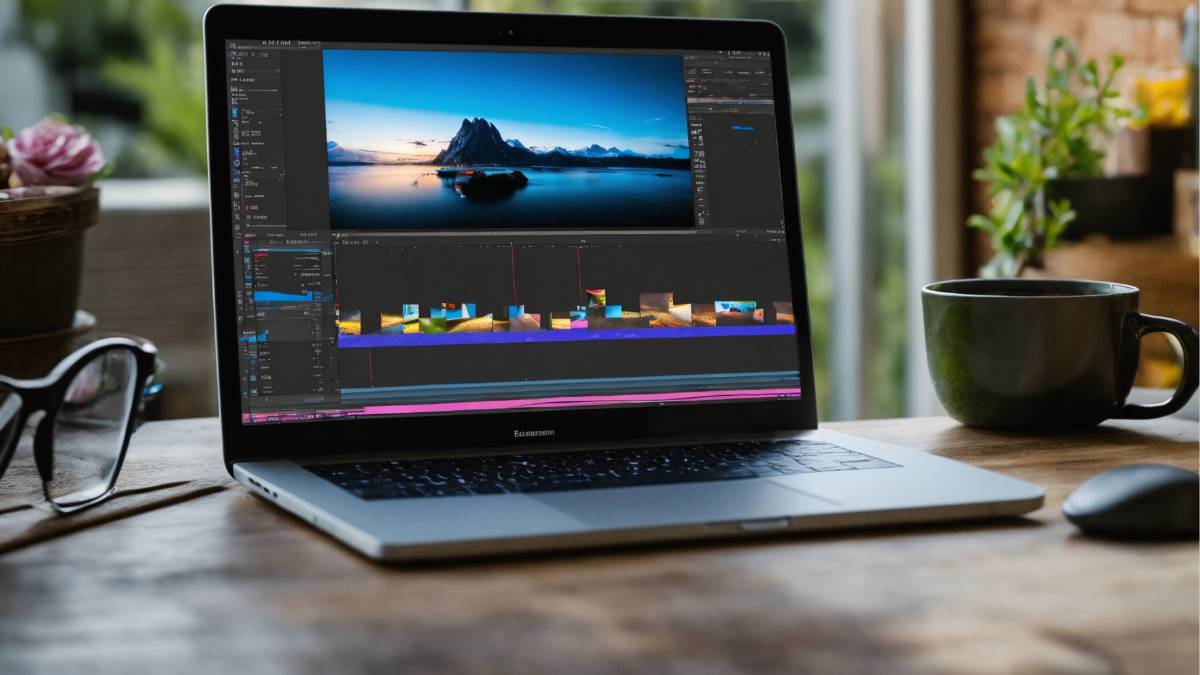
The “17 Best Video Editing Platforms for 2026” takes a deep dive into the world of video editors, everything from the heavy-hitters like Premiere Pro and DaVinci Resolve to the simpler, snappy tools like Filmora or InShot. It’s for anyone making content, whether for social media, marketing, or longer films. The guide looks at desktop, mobile, and web-based options, weighs free versus paid tools, and points out which software fits which kind of creator. There’s also a peek at AI trends shaking up editing in 2026. Think of it as a practical roadmap, not a list of fancy features.
Table of Contents
1. Introduction to Video Editing Platforms
Video editing platforms; basically, the tools that turn raw clips into something people actually want to watch. And not just watch… something that feels polished, intentional, maybe even a little memorable. These days, video isn’t optional anymore. Social media, YouTube, company presentations, ads… video is everywhere.
The thing is, not all editors are created equal. Some are packed with features but can take forever to learn. Others are simple and fast, but once your projects get a bit more complex, you quickly hit walls. So picking the right one isn’t just about which is “popular” or “trending.” It’s about matching it to what you actually need, and, honestly, how much patience you’ve got.
A few practical points tend to separate the good from the frustrating:
- Ease of use: Can you actually get your clips together without needing a manual open for every little thing?
- Features: Do you need color grading, audio mixing, motion graphics, or just the basics?
- System compatibility: Will it run smoothly on your computer or laptop, or is it going to freeze at the worst moment?
- Budget: Free stuff is fine for small projects, but if this is serious work, sometimes it pays to spend a bit.
Think of it like picking a kitchen knife. A dull knife might “work,” but it’s slower, annoying, and eventually you might just cut yourself. A good one makes prep feel effortless, and yeah, you notice the difference immediately.
2. Video Editing Platforms: Classification & User Needs
So, where to start? Honestly, there are a ton of options, and they all serve slightly different purposes. But at a high level, three things usually matter: who the platform is for, what kind of device it runs on, and whether it’s free or paid.
Professional vs. Beginner Tools
- Professional editors like Premiere Pro or DaVinci Resolve are monsters in terms of capability. Multi-camera setups, precise color correction, audio mixing; you name it. But they’re also… intimidating at first. Not something you just pick up on a Tuesday afternoon.
- Beginner-friendly tools like iMovie or Filmora strip things down. You get to the point faster, but naturally, you lose some depth. For many people, that’s perfectly fine. Not every project needs the full kitchen sink.
Desktop vs. Mobile vs. Web-Based
- Desktop editors are still the workhorses. Heavy files, complex timelines, effects; these run best here.
- Mobile apps are surprisingly good now. Quick edits, adding captions or music, posting straight to socials; it’s all doable. InShot and CapCut are solid choices if you don’t need pro-level control.
- Web-based editors? Think convenience over power. Clipchamp, for example, is fine for a fast project or collaborating with someone remotely. Not great if you’re doing a big, multi-hour video, though.
Free vs. Paid Platforms
- Free software can be surprisingly decent, especially for smaller projects. Just watch out for watermarks, export limits, or fewer features than you might want.
- Paid platforms usually bring more stability, updates, and professional-grade features. If video is part of your daily workflow or income, spending a bit makes a lot of sense.
At the end of the day, the right platform comes down to what you actually need versus what looks cool on a list. A bit of self-awareness here saves a lot of wasted hours, and sometimes a bit of frustration, too.
17 Best Video Editing Platforms
1. Adobe Premiere Pro – For When You Need Full Control
Pros:
- Timeline editing is extremely flexible; you can tweak almost anything.
- Handles multiple cameras without breaking a sweat.
- Color grading and audio tools are solid.
- Works on Windows and Mac.
- Tons of plugins, especially if you already use other Adobe apps.
Cons:
- Honestly, it can feel overwhelming at first.
- Subscription can get expensive over time.
- Needs a decent machine; older laptops will struggle.
Why People Use It:
Premiere Pro is basically the go-to for pros. You can make tiny adjustments to audio or color that really matter. For a marketing video or a YouTube series, it’s overkill sometimes, but in a good way. Familiar interface if you’re used to Adobe apps, but if you’re not, expect a few confusing menus early on.
Who It Works For:
Professional editors. Marketing teams. YouTubers who like detailed control. Anyone who doesn’t mind digging into features.
2. Final Cut Pro – Only for Mac, But Fast
Pros:
- Rendering is super quick on Mac.
- Color grading is impressive; HDR is supported.
- Motion graphics and transitions built in.
- A magnetic timeline makes moving clips around less of a headache.
- Works with 360° and VR video.
Cons:
- Mac-only; sorry, Windows folks.
- The one-time cost is high for beginners.
- Fewer plugins than Adobe, but usually enough for most projects.
Why People Use It:
Final Cut feels snappy. It’s optimized for Apple hardware, so big projects don’t choke your system. The magnetic timeline is… well, it’s one of those things you don’t realize you need until you use it. Some pros even keep a Mac version around just for quick turnarounds.
Who It Works For:
Mac users who need speed and professional features. Social media creators who want polished edits quickly. Editors who prefer a simpler interface without losing advanced options.
3. DaVinci Resolve – Free, but Serious
Pros:
- The free version is surprisingly capable.
- Combines editing, color, audio, and effects.
- Fusion VFX is built in.
- Works on Windows, Mac, and Linux.
Cons:
- Learning curve can feel steep.
- Some advanced effects require the paid Studio version.
- Big projects can slow down your machine.
Why People Use It:
DaVinci is a beast once you get past the initial overwhelm. Color grading is where it shines;film-quality stuff is possible here, no joke. For YouTube or marketing, the free version might be all you need. Just expect to spend some time figuring out where everything is.
Who It Works For:
Editors who care about color. Creators looking for a free but professional tool. Anyone willing to spend a bit of time learning the ropes.
4. Adobe After Effects – Motion and VFX Playground
Pros:
- Motion graphics and VFX are top-notch.
- Integrates smoothly with Premiere and other Adobe apps.
- Loads of plugins.
- Great for compositing and animation.
Cons:
- Not for basic editing; you’ll still need a main editor.
- Steep learning curve.
- Can be heavy on computers.
Why People Use It:
After Effects is where you get fancy. Titles, animations, cinematic effects;this is your playground. Most editors pair it with Premiere for actual cuts, because AE isn’t built for splicing footage. Once you get keyframes and layers, things get fun, though.
Who It Works For:
Motion designers. Editors adding cinematic touches. Social media creators who want their video to pop.
5. Avid Media Composer – Hollywood Heavyweight
Pros:
- Longstanding standard for film and TV.
- Handles huge projects and multiple timelines easily.
- Excellent media management.
- Built for teamwork, collaboration works well.
Cons:
- Subscription can be pricey.
- Steep learning curve.
- Overkill for smaller projects.
Why People Use It:
Avid is still king in film and TV. If you’re dealing with tons of footage and a team of editors, it keeps things organized and smooth. For small projects, it might feel like using a bulldozer to plant a flower, but for feature films, it’s indispensable.
Who It Works For:
Film and TV editors. Teams collaborating on long projects. Anyone who needs reliability and professional-grade tools.
6. Wondershare Filmora – Intuitive Editor for Beginners & Intermediates
Pros & Cons
- Pros:
- Drag-and-drop interface
- Built-in templates and effects
- Quick learning curve
- Affordable one-time purchase or subscription
- Cons:
- Limited advanced features
- Not ideal for very large or professional projects
Why People Use It:
Filmora is approachable without feeling too basic. Beginners can get creative fast, and intermediate users still find enough features to experiment. Perfect for YouTube content, marketing videos, or short social clips.
- Guided effects: Built-in templates make cool edits easy.
- Simple interface: Minimal learning curve without sacrificing creativity.
- Quick exports: Ideal for fast turnaround projects.
Who It Works For:
- Beginners and hobbyists
- Small businesses creating marketing videos
- Social media content creators
7. CyberLink PowerDirector – Desktop Editor with Advanced Tools
Pros & Cons
- Pros:
- Fast rendering speeds
- AI-assisted features
- 360° video support
- Advanced effects and color correction
- Cons:
- Some features are only in higher-tier versions
- The interface can feel cluttered initially
Why People Use It:
PowerDirector strikes a balance between speed and features. It’s not as intimidating as Premiere Pro but still offers plenty of control. Great for social media marketers or small production teams.
- AI tools: Quick fixes for lighting, color, and framing
- 360° video editing: Supports immersive content
- Flexible workflow: Handles short clips and longer projects smoothly
Who It Works For:
- Social media creators
- Small marketing teams
- Hobbyist videographers needing pro-level tools
- Multicam Editing: Yes
8. Corel VideoStudio – Feature-Rich Windows Editor
Pros & Cons
- Pros:
- Motion tracking
- Proxy editing for faster performance
- Customizable interface
- Beginner-friendly features included
- Cons:
- Mac not supported
- Some advanced features are limited compared to top-tier editors
Why People Use It:
VideoStudio is reliable for Windows users who want both simplicity and some advanced features. Not flashy, but solid. Perfect if you want to avoid overly complicated software.
- Customizable layout: Adjust your workspace for comfort
- Good performance: Handles HD and 4K without too much lag
- Learning curve: Gentle, even with advanced tools available
Who It Works For:
- Windows users at beginner or intermediate level
- Content creators doing marketing or family videos
9. HitFilm Pro – VFX-Ready Nonlinear Editor
Pros & Cons
- Pros:
- Built-in VFX and compositing tools
- Timeline editing plus effects in one place
- Cross-platform support
- Cons:
- High system requirements
- Can feel overwhelming for beginners
Why People Use It:
HitFilm Pro combines editing and VFX without needing multiple programs. Great if you want cinematic effects for YouTube or short films.
- All-in-one workflow: Edit and apply effects in one timeline
- VFX library: Pre-made effects and compositing tools
- Flexibility: For both short-form content and more ambitious projects
Who It Works For:
- Aspiring filmmakers
- Content creators want cinematic effects
- Intermediate editors ready to experiment
10. Movavi Video Editor – Simple Drag-and-Drop Workflow
Pros & Cons
- Pros:
- Fast, intuitive editing
- Templates and transitions included
- Affordable
- Cons:
- Limited advanced features
- Not ideal for large-scale projects
Why People Use It:
Movavi is perfect for social clips, marketing videos, and anyone who wants to finish a project quickly. The interface is approachable, and you can get something polished without stress.
- Drag-and-drop simplicity: Easy timeline editing
- Quick export options: Share on social platforms fast
Who It Works For:
- Beginners and hobbyists
- Social media marketers
- Small business content creators
11. CapCut – Free Prosumer Platform (Desktop & Mobile)
Pros & Cons
- Pros:
- Free, cross-platform
- Social media optimized
- Supports 8K export
- Cons:
- Limited control over advanced features
- The mobile version is slightly less precise
Why People Use It:
CapCut is fast, intuitive, and perfect for TikTok, Reels, and YouTube Shorts. Even beginners can produce polished videos in minutes.
- Templates and presets: Quick edits for social content
- Cross-platform: Switch between desktop and mobile easily
Who It Works For:
- Social media creators
- Beginners looking for polished results fast
- Casual editors on the go
12. Clipchamp – Web-Based Video Editing Platform
Pros & Cons
- Pros:
- Browser-based, no install required
- Simple interface
- Templates for fast edits
- Cons:
- Limited advanced editing features
- Depends on the internet speed
Why People Use It:
Clipchamp is handy if you want to edit videos quickly in a browser. Not suited for big projects, but great for marketing clips or social media.
- Easy templates: Drag-and-drop simplicity
- Remote collaboration: Great for teams
Who It Works For:
- Teams working remotely
- Beginners needing simple edits
- Quick social media videos
13. iMovie – Free Apple Editing Software
Pros & Cons
- Pros:
- Free and beginner-friendly
- Easy timeline editing
- Simple color correction and transitions
- Cons:
- Mac/iOS only
- Limited advanced features
Why People Use It:
iMovie is perfect for hobbyists or anyone just starting. Clean interface, easy exports, and great for family videos or basic marketing clips.
- Timeline simplicity: Minimal learning curve
- Quick edits: Ideal for short videos
Who It Works For:
- Apple users
- Beginners creating personal or small business videos
14. VSDC Free Video Editor – Windows Feature-Rich Free App
Pros & Cons
- Pros:
- Completely free with no forced watermark
- Non-linear editing (unusual for free tools)
- Motion tracking and color correction included
- Lightweight and works on low-spec PCs
- Cons:
- Interface feels dated and cluttered
- Steeper learning curve than most beginner tools
- Mac not supported
Why People Use It:
VSDC doesn’t look fancy, but it’s surprisingly capable. For a free editor, it offers tools that usually sit behind a paywall: motion tracking, masking, and color correction. It rewards patience. Once familiar, it becomes a reliable option, especially for Windows users who don’t want subscriptions.
- Non-linear timeline: More flexibility than basic free editors
- Strong free feature set: Few limitations compared to paid tools
- Lightweight performance: Runs well on older machines
Who It Works For:
- Windows users on a tight budget
- Editors working on low-spec PCs
- Beginners willing to trade polish for power
15. Shotcut – Open-Source Multi-Platform Editor
Pros & Cons
- Pros:
- Free and open-source
- Cross-platform (Windows, Mac, Linux)
- Supports a wide range of formats
- No watermarks or export limits
- Cons:
- Interface can feel unintuitive
- Fewer presets and templates
- Requires manual setup for smoother workflows
Why People Use It:
Shotcut is straightforward and honest. It doesn’t try to hide complexity with flashy templates. Instead, it gives full control to editors who want a free, no-strings-attached platform. Once configured properly, it’s dependable and flexible.
- Format flexibility: Handles almost any video format
- No restrictions: Truly free editing without compromises
- Active development: Regular updates from the community
Who It Works For:
- Editors who prefer open-source tools
- Users working across different operating systems
- Intermediate editors who don’t need heavy automation
16. Kdenlive – Community-Driven Open-Source Editor
Pros & Cons
- Pros:
- Free and open-source
- Multi-track timeline editing
- Cross-platform support
- Highly customizable workflow
- Cons:
- The interface isn’t very polished
- Occasional stability issues on large projects
- Fewer built-in effects than commercial tools
Why People Use It:
Kdenlive is one of those tools that grows on you. It’s not flashy, but it’s capable. Many Linux users rely on it for serious work, and even on Windows or Mac, it holds its own for longer projects if handled carefully.
- Flexible timeline: Ideal for structured edits
- Custom workflows: Tailor shortcuts and layouts
- Strong community support: Frequent improvements and fixes
Who It Works For:
- Linux users
- Editors who prefer customization over automation
- Open-source advocates are doing serious editing
17. InShot – Mobile-Focused Social Content Editor
Pros & Cons
- Pros:
- Extremely easy to use
- Designed for vertical and social video
- Built-in music, filters, and text tools
- Fast editing on mobile devices
- Cons:
- Limited advanced editing controls
- Free version includes a watermark
- Not suited for long-form content
Why People Use It:
InShot keeps things simple, and that’s the point. It’s built for speed, not complexity. If the goal is to edit a Reel, Short, or TikTok and publish quickly, it does the job without friction.
- Social-first design: Perfect aspect ratios and exports
- Quick edits: Minimal setup, instant results
- Mobile convenience: Edit anywhere, anytime
Who It Works For:
- Social media creators
- Small businesses posting regularly
- Beginners’ editing on mobile

Apply Now: Digital Marketing Course
Future of Video Editing Platforms: AI & Automation
Video editing has always moved alongside hardware and formats. What’s different now is how much of the “busy work” is slowly disappearing. Not the craft itself; just the repetitive stuff that used to eat hours.
Across platforms, smarter tools are starting to handle things editors never loved doing in the first place. Cutting dead space. Syncing clips. Formatting exports for different screens. The creative decisions still sit with the editor, but the setup is getting lighter.
Where editing platforms are clearly heading
- Faster rough cuts with automated scene detection
- Cleaner captions and subtitles without manual timing
- Smarter resizing for vertical, square, and widescreen formats
- Better organization of footage as projects grow
This shift matters most for creators and teams working at volume. Daily content. Weekly campaigns. Multi-platform distribution. When timelines stack up, even small time savings compound fast.
What changes in real workflows
Editing becomes less about wrestling with the interface and more about judgment. What stays. What goes. What actually serves the message. Platforms that reduce friction tend to win long-term, especially with marketers and content teams who care about speed without sacrificing quality.
At the same time, traditional tools aren’t going anywhere. High-end film, long-form storytelling, and complex visual work still demand hands-on control. The future isn’t replacement; it’s balance.
How to Choose the Right Video Editing Platform (Decision Guide)
There’s no universal “best” video editor. The right choice depends on what gets made, how often, and by whom. Many people pick based on reputation or price and regret it later. A better approach is matching the tool to the job.
Start with the actual goal
- YouTube and long-form content – timeline control and audio tools matter
- Short-form social content – speed, templates, and aspect ratio flexibility
- Marketing and ads – text, transitions, brand consistency
- Film and documentary – color, media management, collaboration
Check system compatibility early
Not every editor runs smoothly on every machine. Some are optimized for Mac. Others work best on Windows. Web-based tools reduce hardware pressure but trade off depth. It’s worth checking the minimum specs before committing time.
Pricing isn’t just about cost
- Free tools are great for learning and light projects
- One-time licenses suit occasional editors
- Subscriptions make sense for teams and professionals
The cheapest option often becomes expensive in time. The most expensive option is overkill for many workflows.
Look beyond features
Plugins, tutorials, community support, and update frequency matter more than long feature lists. A platform with strong learning resources tends to age better as needs evolve.
A simple rule helps: pick the tool that feels slightly ahead of current needs, not miles beyond them.
Conclusion:
Video editing platforms have never been more diverse or more specialized. Some focus on speed. Others on control. A few try to do everything. None is perfect for everyone.
Across the 17 platforms covered, a few patterns stand out:
- Professionals lean toward tools built for depth and precision
- Beginners benefit most from clarity and guidance
- Social-first creators value speed and format flexibility
- Open-source tools continue to punch above their weight
The strongest choice isn’t the one with the longest feature list. It’s the one that fits naturally into the way content is planned, edited, and published.
For anyone serious about video in 2026, whether for business, brand, or creative work, the right platform doesn’t just make editing easier. It makes consistency possible. And that, more than anything, is what keeps content moving forward.
FAQ – Video Editing Platforms
1. What’s the best free video editing software without watermarks?
Free and usable still exist, but expectations need to be realistic. Most tools that export without watermarks ask for patience instead: learning curves, heavier interfaces, fewer hand-holding moments. That’s usually the deal. If clean output matters more than speed on day one, free desktop editors tend to be the safer bet.
2. Which video editing platform is best for beginners?
The best beginner tools don’t feel “beginner” for long. Simple timelines, clear labels, and effects that work without five layers of setup help a lot early on. What really matters is whether the software grows with the user instead of hitting a wall after the basics.
3. What platforms support 8K video editing?
Support is one thing. Smooth editing is another. Several professional platforms handle 8K files, but hardware does most of the heavy lifting. Proxy workflows quietly make or break the experience here. Without them, even powerful systems struggle.
4. Which tools are best for collaborative team editing?
Collaboration works when everyone knows where files live and who touched what last. Platforms built for studios usually nail this: shared projects, clear versioning, fewer surprises. Smaller teams can get by with lighter setups, but discipline matters more than the software.
5. Can professional editors like Premiere Pro or DaVinci Resolve run on a laptop?
Yes, and more often than people think. Laptops today are capable, especially for marketing videos, YouTube content, and short-form edits. Long timelines and heavy color work still test limits, but most everyday projects run just fine with sensible settings.
6. Are there lightweight video editing platforms for low-spec PCs?
There are, and they’re underrated. These tools skip flashy extras and focus on cutting, trimming, and exporting. For basic edits, they often feel faster and less frustrating than “bigger” editors that demand more than the machine can give.
7. Which video editing platforms work best for social media content?
Speed beats depth here. Vertical formats, captions, music, quick exports; that’s the checklist. Tools designed around short-form content remove friction. Less setup, fewer clicks, faster publishing. That’s the difference.
8. Do mobile video editing apps offer professional-level features?
They won’t replace desktop editors for complex projects. But for reels, shorts, ads, and daily posts? They’re surprisingly capable. Mobile editors shine when turnaround time matters more than perfection.
9. How often are video editing platforms updated with new features?
Most major tools roll out updates a few times a year. Some move faster, some slower. Frequent updates sound great, but stability usually matters more. Nobody wants new features if old workflows break.
10. Can built-in automation features actually speed up editing?
They help with the boring parts. Set up, formatting, repetitive steps. That’s where the time savings show up. Final decisions still need a human eye. Automation works best when it stays in the background and doesn’t try to be clever.